

Every computer needs somewhere to hold data it’s actively working with, and that job belongs to RAM. Understanding what is RAM and how it differs from storage explains why adding more of it can speed up a sluggish PC, while a faster CPU alone sometimes can’t.
- RAM (Random Access Memory) temporarily holds data your CPU is actively using, and clears it when the system powers off.
- It comes in physical sticks called DIMMs for desktops and smaller SODIMMs for laptops, both plugging into slots on the motherboard.
- DDR5 is the current generation, running roughly 4800 to 6000+ MT/s versus DDR4’s 2133 to 3200 MT/s range.
- DDR4 and DDR5 are physically incompatible; a motherboard built for one generation cannot accept the other.
What RAM Actually Does
RAM stands for Random Access Memory, and it acts as short-term working space for whatever a computer is doing right now, open programs, browser tabs, game assets, that need to be read and written extremely fast. Unlike an SSD or hard drive, RAM is volatile, meaning everything stored in it disappears the moment power is cut. That tradeoff is intentional: RAM trades permanence for speed, since it can be read and written far faster than any storage drive, which is exactly what a CPU needs when juggling active tasks.
What RAM Physically Looks Like
Desktop RAM comes as a rectangular stick called a DIMM (Dual In-line Memory Module), which slots vertically into a dedicated socket on the motherboard. Laptops use a smaller version called a SODIMM, built to the same electrical standard but in a more compact physical size to fit thin chassis.

A desktop DDR4 DIMM module, showing the row of gold contact pins that slot into the motherboard (Source: ElooKoN/Wikimedia Commons, CC BY-SA 4.0).
Most modern motherboards have two or four RAM slots sitting right next to the CPU socket, since that physical closeness helps keep the electrical path short for fast signaling.

A laptop motherboard with two empty SODIMM slots positioned right beside the CPU (Source: Siarhei Besarab/Wikimedia Commons, CC BY-SA 4.0).
DDR4 vs DDR5: What Actually Changed
The “DDR” in DDR4 and DDR5 stands for Double Data Rate, and the number marks the generation. According to Corsair, DDR4 typically runs between 2133 and 3200 MT/s, while DDR5 starts around 4800 MT/s and is already common at 5600 to 6000 MT/s in retail kits. DDR5 also runs at a slightly lower 1.1V compared to DDR4’s 1.2V, and moves voltage regulation onto the module itself via an onboard PMIC chip rather than relying entirely on the motherboard.
| Spec | DDR4 | DDR5 |
|---|---|---|
| Typical speed | 2133-3200 MT/s | 4800-6000+ MT/s |
| Voltage | 1.2V | 1.1V |
| Voltage regulation | On motherboard | Onboard PMIC |
Heads Up: DDR4 and DDR5 sticks are not interchangeable, not electrically and not even physically. The notch position on the connector is different between the two, so a DDR5 stick simply will not fit into a DDR4 slot, and a motherboard built for one generation can’t run the other.
Laptop RAM Looks Different Too
SODIMMs follow the same DDR generation rules as desktop DIMMs, just in a shorter form factor built for laptop thickness. A DDR4 SODIMM and a DDR5 SODIMM are not interchangeable either, for the same electrical reasons as their desktop counterparts.
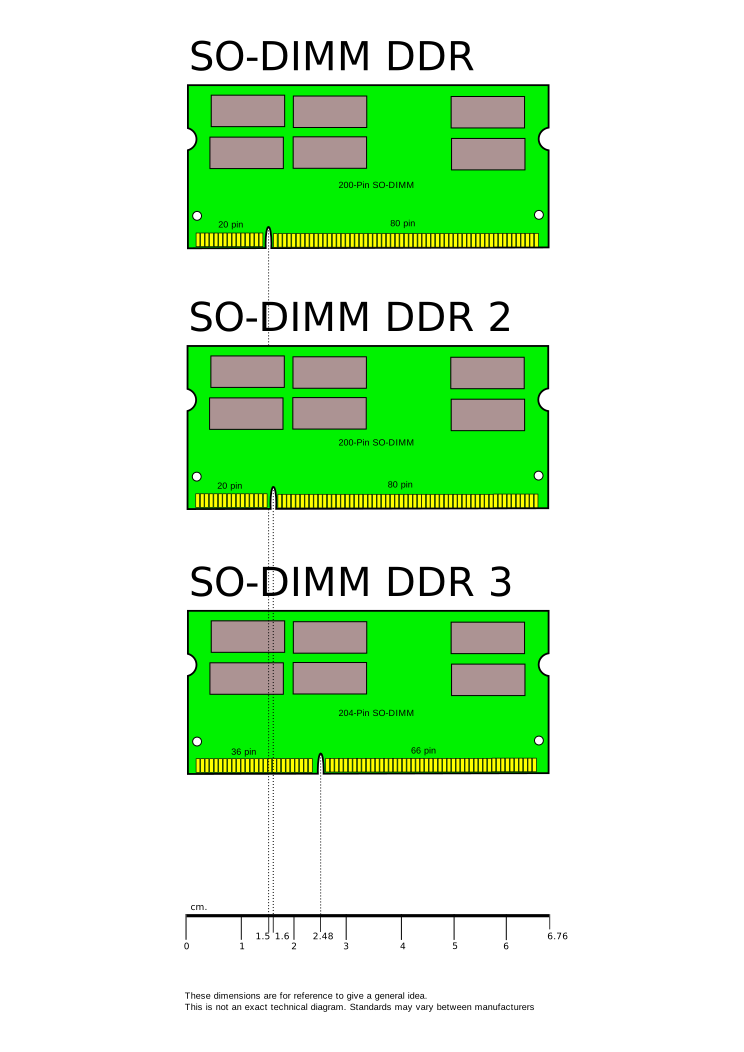
A size and notch comparison of SODIMM laptop memory modules across DDR generations (Source: Wikimedia Commons, Public Domain).
Single-Channel vs Dual-Channel: Why Stick Count Matters
How RAM sticks are installed can matter as much as their raw speed rating. Most modern motherboards support dual-channel memory, which lets the CPU talk to two RAM sticks at once instead of one, roughly doubling the available memory bandwidth compared to running the same total capacity on a single stick. That’s why a common piece of advice is to buy RAM in matched pairs, such as two 8GB sticks instead of one 16GB stick, even though the total capacity is identical either way.
The motherboard manual usually marks which slots to use for dual-channel mode, since populating the wrong pair of slots on a four-slot board can accidentally leave the system running in single-channel mode despite having two sticks installed. Some boards also support quad-channel configurations, mostly on workstation and server platforms rather than typical consumer desktops.
Timings and Latency: The Other Half of RAM Speed
The MT/s number on a RAM kit’s box tells only part of the performance story. RAM also carries a set of timing values, often written as something like 16-18-18-36, which describe how many clock cycles it takes to complete specific internal operations. Lower numbers generally mean lower latency, meaning the RAM responds slightly faster to each request, even at the same MT/s speed rating. In practice, the frequency number usually has a bigger real-world effect than timings for most everyday tasks, but enthusiasts tuning for maximum performance often look at both together rather than frequency alone.
Why More RAM Doesn’t Always Mean a Faster PC
RAM affects how many programs and browser tabs a system can juggle smoothly without slowing down, but it doesn’t substitute for CPU or GPU power. A system that’s actually bottlenecked by an older CPU won’t speed up meaningfully just by adding more RAM once it already has enough to avoid constant swapping. Checking whether a system can even boot without RAM installed is a useful reminder of just how fundamental this component is: without it, there’s no working memory for the CPU to use at all, so the system won’t start.
Slot count also matters for future upgrades. Before buying, it’s worth checking how many expansion slots a motherboard actually has, since RAM slots and M.2 storage slots both compete for limited space on smaller boards.
FAQs
1. What happens to data in RAM when the computer shuts down?
It’s erased completely. RAM is volatile memory, so anything not saved to a drive before shutdown is lost the moment power is cut.
2. Can I mix DDR4 and DDR5 sticks in the same system?
No. They use different voltages, different notch positions, and different slot designs, so they are not physically or electrically compatible with each other.
3. Does RAM speed matter as much as RAM capacity?
Both matter, but for different reasons. Capacity determines how much can be held at once before the system has to swap data to storage; speed affects how quickly the CPU can read and write that data.
4. Is laptop RAM the same as desktop RAM?
Not physically. Laptops use the smaller SODIMM form factor while desktops use full-size DIMMs, though both follow the same DDR generation standards underneath.
This article is for informational purposes; specs and compatibility may change, always check the manufacturer’s latest listing.


