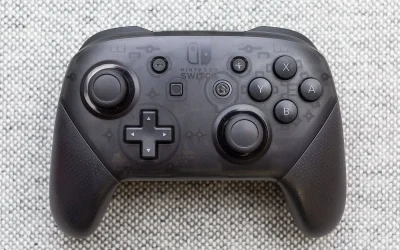
Not every gamepad comes with the same brand name or the same pairing quirks, which makes a general question worth answering on its own: how to pair a wireless controller to a PC when the controller in hand could be anything from an Xbox pad to a generic third-party gamepad bought off a marketplace listing.
- Most modern wireless controllers pair through Windows’ built-in Bluetooth settings, regardless of brand.
- Some controllers rely on a proprietary USB dongle instead of standard Bluetooth, which changes the pairing process entirely.
- Steam offers the most consistent experience for mapping and recognizing a wide range of wireless controllers.
- Pairing mode is usually triggered by a specific button combo that differs between brands, so checking the manual first saves time.
Step 1: Identify the Connection Type
Before touching any settings, figure out what kind of wireless technology the controller actually uses, since this determines the entire pairing process:
- Standard Bluetooth: The most common type today, used by Xbox Series controllers, the DualSense, Switch Pro Controller, and most newer third-party pads.
- Proprietary USB dongle: Used by some gaming-focused controllers and the older Xbox 360 wireless controller, requiring the controller’s specific receiver rather than the PC’s built-in Bluetooth.
- 2.4GHz USB receiver (non-Bluetooth): Common on budget wireless gamepads, functioning similarly to a wireless mouse dongle rather than true Bluetooth.
Checking the controller’s packaging, manual, or a quick product search usually clears this up in under a minute.
Step 2: Pairing Over Standard Bluetooth
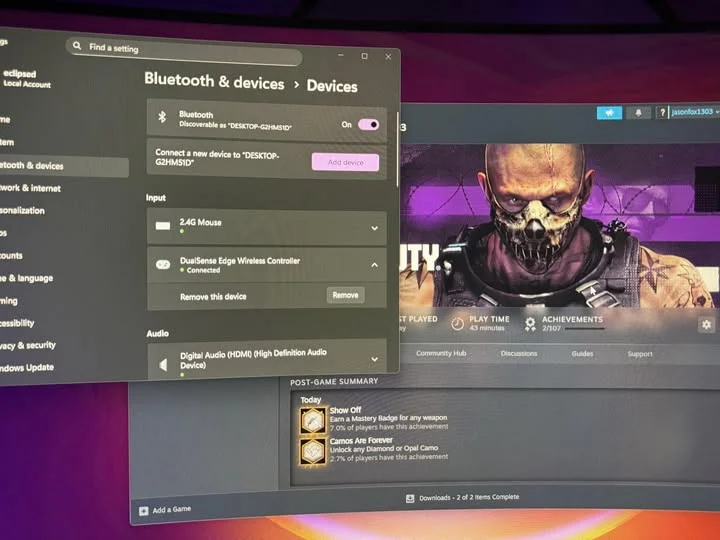
For the majority of modern controllers, the general process looks like this:
- Turn on the controller.
- Find and press the dedicated pairing button, which varies by brand (often a small recessed button, or a specific button combo held for several seconds).
- Watch for a flashing light, which signals the controller is now discoverable.
- On the PC, open Settings, then Bluetooth & devices, then Add device.
- Select Bluetooth and choose the controller from the list once it appears.
- Wait for the light to stop flashing and stay solid, confirming the connection.
This general flow applies whether the controller is an Xbox Wireless Controller, a DualSense, or most third-party Bluetooth gamepads on the market.
Fact Check: Not every wireless controller actually uses Bluetooth, even if it is marketed as “wireless.” A lot of budget controllers use a simpler 2.4GHz radio protocol through a dedicated USB receiver instead, which will never show up in a Bluetooth device scan no matter how long you wait.
Step 3: Pairing With a Proprietary Dongle Instead
If the controller came with its own small USB receiver, the process differs:
- Plug the receiver into a free USB port on the PC.
- Allow Windows a moment to install any necessary driver automatically.
- Press the sync or pairing button on the controller, then the matching button on the receiver, usually within a short window of each other (often around 20 seconds).
- A steady light on the controller confirms a successful pairing.
This method tends to offer lower latency than standard Bluetooth in exchange for needing to keep track of a small dongle, which is easy to misplace compared to a built-in Bluetooth connection.
Verifying the Controller Is Actually Working
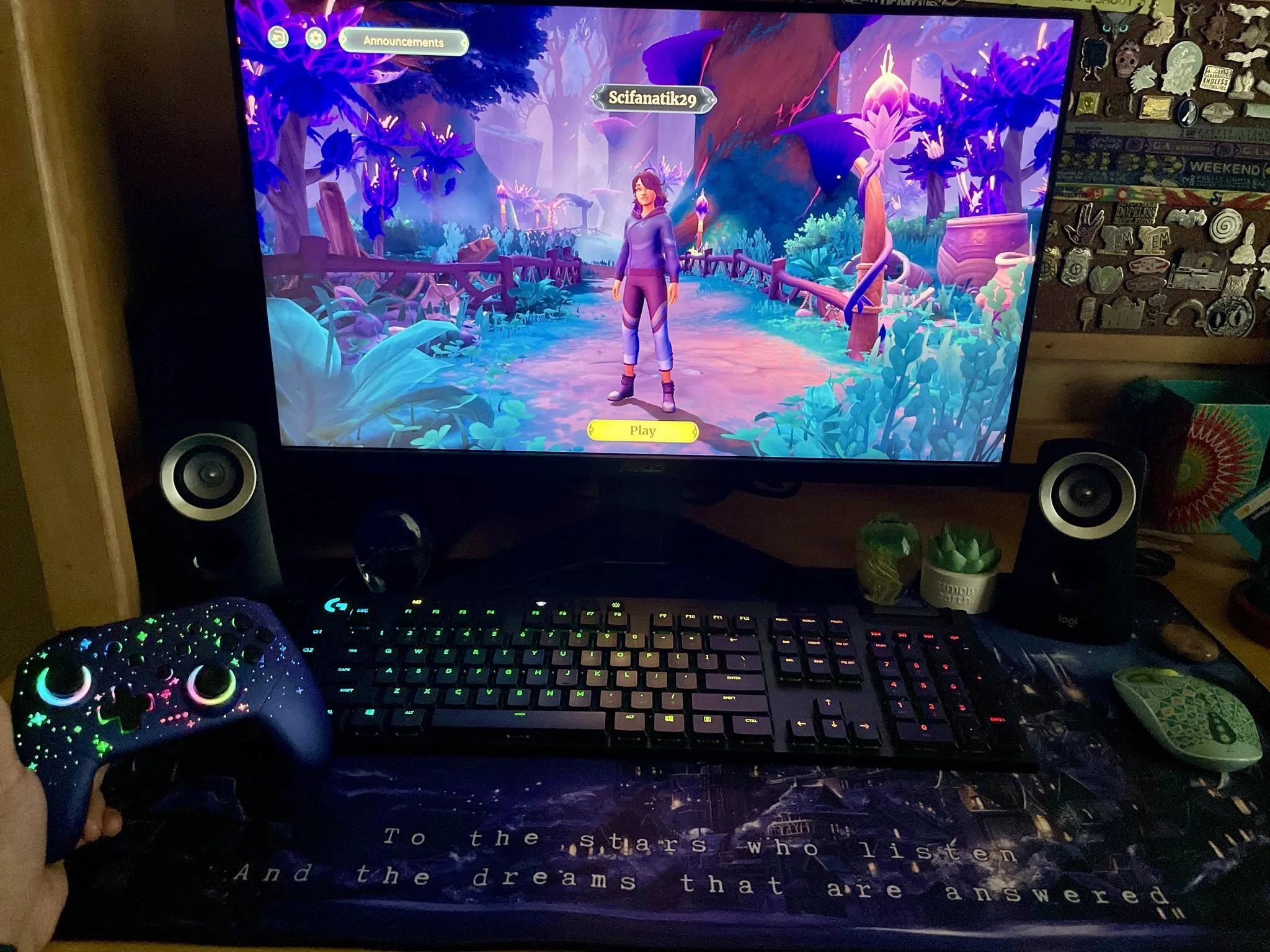
Once paired through either method, it is worth confirming Windows is reading inputs correctly before jumping into a game:
- Search for “Set up USB game controllers” in the Start menu and check that button presses and stick movement register properly.
- Open Steam’s Big Picture mode and check the controller settings for a live input preview.
- If nothing registers in either check, the problem is likely at the pairing or driver level, not within a specific game.
Getting the Most Out of It Through Steam
Steam remains the most reliable software layer for using a wide variety of wireless controllers consistently:
- Steam Input can remap virtually any recognized controller to work with games that lack native controller support.
- Controller-specific features (touchpad, gyro, adaptive triggers where supported) often only activate through Steam’s configuration menu rather than at the raw Windows level.
- Community-shared control layouts can save time configuring an unusual or less common controller for a specific game.
Common Pairing Problems Across Controller Brands
| Problem | Likely Cause | Fix |
|---|---|---|
| Controller never appears in Bluetooth scan | Not actually a Bluetooth device, or not in pairing mode | Check manual for correct pairing button combo, or confirm it uses a dongle instead |
| Pairs but disconnects randomly | Weak Bluetooth chipset or interference | Move closer to PC, reduce other wireless devices nearby |
| Pairs but buttons do not respond in-game | Game does not recognize the input format | Enable Steam Input or check for a dedicated controller mapping tool |
| Dongle not recognized by Windows | Driver issue or faulty USB port | Try a different port, install manufacturer driver manually if available |
A Note on Buying a New Wireless Controller
For anyone shopping specifically for a hassle-free PC pairing experience, prioritizing standard Bluetooth support over a proprietary dongle tends to pay off, since it avoids the risk of losing a tiny receiver down the line. Pricing for a solid wireless controller generally lands somewhere in the $50-$70 range depending on brand and features.
It also helps to check whether the controller has broad game support baked in or relies heavily on third-party software, since that affects how smooth day-to-day use will actually feel. Those setting up a full wireless gaming station might also find it worth reviewing how much RAM a gaming computer should have, since controller pairing is usually just one small step in a larger setup process.
Keeping Multiple Wireless Controllers Organized
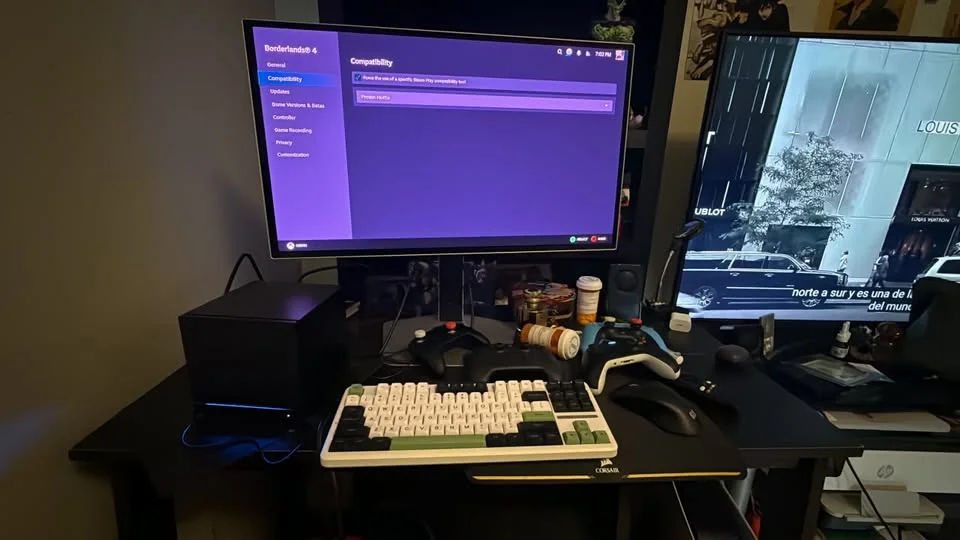
For households juggling more than one wireless controller, a few habits keep things from getting confusing:
- Label or note which controller is paired to which Bluetooth slot if the PC frequently switches between several.
- Turn controllers off fully when done rather than leaving them idle, which helps some models reconnect more cleanly next time.
- Keep any proprietary dongles stored with their matching controller to avoid mixing them up later.
- Update controller firmware periodically if the manufacturer offers a companion app, since firmware updates occasionally fix pairing bugs reported by other users.
When to Just Start Over
If a controller has gone through several failed pairing attempts in a row, the fastest fix is often to fully reset the Bluetooth pairing from both sides rather than retrying the same steps repeatedly. On the PC, remove the device entirely from the Bluetooth device list instead of just disconnecting it. On the controller, power it off completely, wait several seconds, and re-enter pairing mode fresh. This clears out any stale connection data that can quietly cause repeated failures even when every individual step looks correct.
Frequently Asked Questions
1. Why won’t my wireless controller show up in Bluetooth settings?
It may not actually use Bluetooth. Many budget wireless controllers rely on a separate 2.4GHz USB receiver instead, which will never appear in a standard Bluetooth device scan.
2. Does every wireless controller work with every PC game?
Not automatically. Games built around a specific input standard, usually XInput, may not recognize other controller types without Steam Input or third-party mapping software.
3. Is a USB dongle better than Bluetooth for gaming?
Dongles generally offer slightly lower latency, making them a common preference for competitive gaming, while Bluetooth is more convenient since it does not require keeping track of extra hardware.
4. Can two different wireless controllers be paired to one PC at the same time?
Yes, Windows and Steam both support multiple simultaneous controllers, which is useful for local multiplayer sessions.
Disclaimer: Pairing steps can vary by controller brand and model. Check the specific manufacturer’s instructions if the general steps above do not match the hardware in hand.