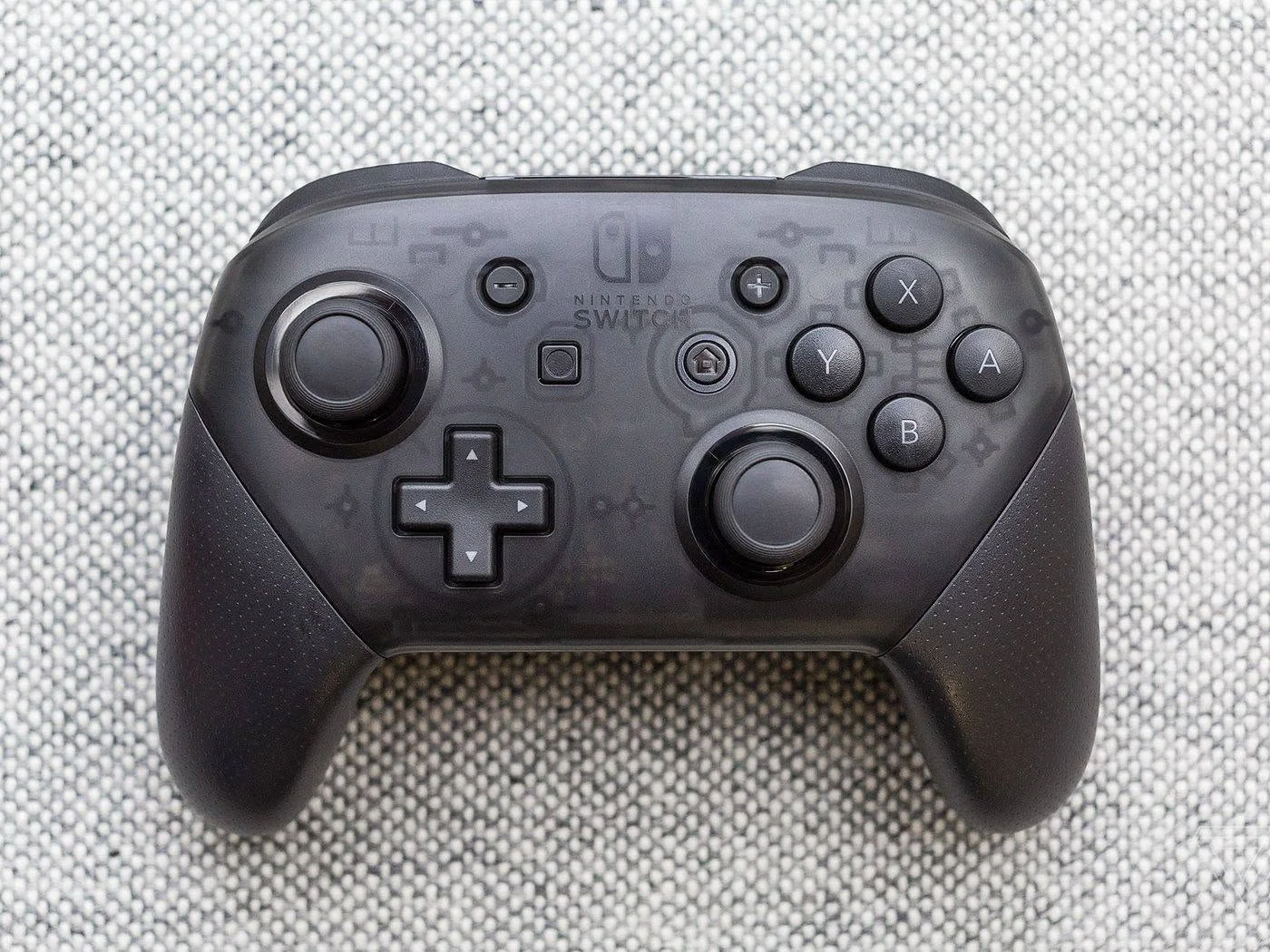
Joy-Cons and Pro Controllers tend to pile up in households with a Switch, and plenty of people eventually wonder if those controllers have a second life beyond Nintendo’s console. Will a Nintendo Switch controller work on PC, and is it actually a decent option for PC gaming or more of a novelty?
- The Switch Pro Controller connects to PC over Bluetooth or USB-C and has official Steam Input support.
- Joy-Cons also work on PC but are fiddlier to pair, especially as a single detached controller.
- Button mapping differs from Xbox and PlayStation layouts, which can be confusing in games expecting standard prompts.
- Outside of Steam, native support for Switch controllers on other PC games is much less consistent.
Starting With the Pro Controller
The Nintendo Switch Pro Controller is the more PC-friendly option of the two main Switch controllers. It is a full-size, traditional gamepad shape and connects over Bluetooth just like most modern wireless controllers.
Here is how to connect it to Windows:
- Press and hold the small sync button on the top edge of the controller, between the ZL and ZR triggers.
- On the PC, open Bluetooth & devices in Settings and select Add device.
- Choose “Pro Controller” from the list of discovered Bluetooth devices.
- Once paired, the controller should be recognized as a generic gamepad by Windows.
A USB-C cable also works for a wired connection, which tends to be more stable for longer sessions.
What About Joy-Cons?

Joy-Cons are trickier. They are small, designed to be held individually or combined, and were not originally built with PC gaming in mind the way the Pro Controller was.
- A single Joy-Con can pair over Bluetooth, but it only has half the usual buttons, making it awkward for most games.
- Pairing both Joy-Cons as a combined controller on PC is possible with the right software but is not as seamless as using a Pro Controller.
- The analog sticks on Joy-Cons are smaller and some users find them less comfortable for extended PC gaming sessions.
- Joy-Con drift, a widely reported hardware issue, affects PC use exactly as much as it affects Switch use since it is a physical hardware problem.
Tip: If the plan is to use Switch controllers regularly on PC, the Pro Controller is the far less frustrating choice. Joy-Cons are better treated as a backup option rather than a primary PC gamepad.
Steam’s Official Support
Steam added official support for the Switch Pro Controller, which is the most reliable way to use it on PC. To turn it on:
- Open Steam, go to Settings, then Controller, then General Controller Settings.
- Check the box for “Nintendo Switch Pro Controller Support” (sometimes also grouped under general controller support options).
- Connect the controller via Bluetooth or USB-C as described above.
- Steam should detect it immediately and allow full remapping through Steam Input.
This also enables Steam Input for games that would not otherwise understand the Switch controller’s signal format, similar to how Steam bridges compatibility gaps for the DualShock 4 and DualSense.
Button Layout Confusion

One quirk worth mentioning is that Nintendo’s button layout is mirrored compared to Xbox. On an Xbox controller, A is on the bottom of the face buttons and B is on the right. On a Switch controller, A is on the right and B is on the bottom.
This does not cause technical problems, but it can genuinely mess with muscle memory for anyone switching between an Xbox controller and a Switch controller on the same PC. Steam Input can remap this, but many non-Steam games display prompts based on the layout they assume, which may not match what is physically being pressed.
Comparing Switch Controllers to Other Options on PC
| Controller | Connects to PC? | Best For |
|---|---|---|
| Switch Pro Controller | Yes, Bluetooth or USB-C | General PC gaming, especially through Steam |
| Single Joy-Con | Yes, limited | Casual or party-style games needing fewer buttons |
| Combined Joy-Cons | Yes, with extra setup | Replicating a standard controller layout |
| Xbox Wireless Controller | Yes, native | Widest native game compatibility |
Why Bother Using a Switch Controller on PC at All
For most people with easy access to an Xbox controller, there is not a strong practical reason to prefer Switch controllers for PC gaming. The appeal tends to come from already owning the hardware, wanting a backup controller without spending more money, or simply preferring the compact size of Joy-Cons for lighter, more casual games.
It is also a popular option among people building retro-style or party game setups on PC, since the Switch controller’s motion controls and compact form factor suit certain game genres well, even if it is not the default recommendation for competitive or performance-focused gaming. Those building out a broader PC gaming space might also want to look at whether a gaming PC is worth it in general, since controller flexibility is just one small piece of that bigger picture.
Troubleshooting Common Pairing Problems

- Controller shows up but inputs do not register: This is often a Steam Input conflict. Try toggling PlayStation/Switch controller support off and back on in Steam’s controller settings.
- Pro Controller will not enter pairing mode: Make sure it is not already connected to a Switch console nearby, since it can only maintain one active Bluetooth pairing at a time.
- Joy-Cons disconnect randomly: This is frequently a Bluetooth interference issue, and moving other wireless devices further away or switching to a USB-C wired connection for Joy-Con grips can help.
- Game does not show correct button prompts: Many games are not built with Switch controllers in mind, so prompts may default to Xbox-style icons regardless of the actual layout being used.
Is It Worth Buying a Switch Controller Specifically for PC?
For someone shopping purely for PC gaming with no Switch console in the house, a Switch Pro Controller is a reasonable but niche choice. Pricing generally falls in the $65-$70 range new, putting it roughly in line with a premium Xbox controller.
The deciding factor usually comes down to genre. For platformers, party games, or anything where the Nintendo-style layout and motion controls add value, it is a solid pick. For shooters, competitive multiplayer, or anything demanding the widest possible compatibility, an Xbox controller remains the safer and more broadly supported option across the PC game library.
Frequently Asked Questions
1. Does the Switch Pro Controller work with every PC game?
Not natively in every case. It works best through Steam, where official support exists. Outside Steam, compatibility varies by game and may require third-party mapping tools.
2. Can Joy-Cons be used individually on PC?
Yes, but a single Joy-Con only has half the buttons of a full controller, making it impractical for most standard PC games beyond simple or motion-based titles.
3. Do motion controls work when using a Switch controller on PC?
Gyro-based motion controls can work in Steam for games that support gyro aiming, though support outside of Steam is inconsistent.
4. Is the Switch Pro Controller wired or wireless only?
It supports both. A USB-C cable provides a wired connection, and Bluetooth handles the wireless option, giving flexibility depending on the situation.
Disclaimer: Controller compatibility can vary by individual game and Windows version. Check a game’s control settings or Steam’s controller configuration menu to confirm current support.