Opening up a PC case for the first time, it’s not always obvious which component is which. The CPU in particular gets hidden under a cooler most of the time, so a reasonable question is simply where is the CPU located on a motherboard, and how do you spot it once the cooling hardware is out of the way.
- The CPU sits in a dedicated socket, usually positioned toward the upper half of the board, close to the RAM slots.
- On full ATX and microATX boards, it typically sits in the top-center area, while Mini-ITX boards center it more.
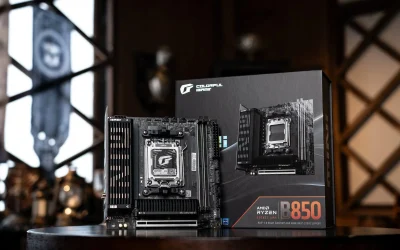
- The socket is a square or rectangular area with pins or contact pads, locked down by a metal retention bracket.
- A cooler, heatsink, or fan almost always covers the CPU directly, so spotting it usually means looking under that hardware.
Finding the Socket First
The CPU socket is the easiest landmark to identify before locating the CPU itself. It’s a square or rectangular mounting area, usually made of plastic and metal, with either pins (on AMD boards, though newer AM5 moved pins to the CPU) or flat contact pads (common on Intel’s LGA sockets).
- Surrounded by a metal retention bracket or lever arm that locks the CPU in place
- Almost always positioned close to the RAM slots, since the memory controller needs a short, direct connection
- Usually the largest single socket-like feature on the board besides the PCIe slots
A breakdown on identifying the CPU on a motherboard covers this same visual approach, using the socket as the primary landmark since the CPU itself is often hidden under cooling hardware.
General Placement by Form Factor
Exact placement isn’t standardized by any official spec, it’s up to each manufacturer, but a consistent pattern shows up across most consumer boards.
| Form Factor | Typical CPU Socket Location |
|---|---|
| ATX | Top-center area of the board, left of the rear I/O panel |
| Micro-ATX | Similar top-center placement, slightly more compact layout |
| Mini-ITX | Closer to the dead center of the board due to the smaller overall size |
There’s no requirement that manufacturers follow this layout exactly, but it’s the practical industry convention since it keeps the CPU close to both the RAM slots and the rear I/O panel’s power delivery circuitry.
Why It’s Covered By a Cooler
In a fully built PC, the CPU is rarely visible directly since a heatsink, fan, or all-in-one liquid cooler sits mounted directly on top of it to manage heat. This is one reason people building their first PC sometimes struggle to find it at a glance.
- Stock coolers (included with many CPUs) typically clip or screw directly onto the socket’s retention bracket
- Aftermarket air coolers use a backplate and mounting bracket specific to the socket type
- Liquid cooling setups use a water block in place of a traditional heatsink, mounted the same general way
One Thing to Know: removing a cooler to look at the CPU underneath isn’t something to do casually, since it usually means cleaning off and reapplying thermal paste before reassembly.
Spotting It Step by Step
- Open the case and locate the RAM slots first, since the CPU socket sits immediately next to them
- Look for the largest cooling assembly in the build, a tower cooler, low-profile heatsink, or liquid cooling block
- The CPU socket sits directly beneath that cooling hardware
- If building from scratch with no cooler installed yet, the empty socket with its retention lever is easy to spot on its own
AMD vs Intel Socket Differences
The physical socket design differs noticeably between AMD and Intel, which affects what the CPU and socket look like up close.
- AMD’s older AM4 socket has pins on the socket itself, with the CPU having flat contact pads
- AMD’s current AM5 socket flipped this, moving pins onto the CPU itself instead
- Intel’s LGA sockets have always used pins on the socket side, with flat contact pads on the CPU
Regardless of which design a board uses, the physical location on the board (top-center for ATX and microATX, closer to center for Mini-ITX) stays consistent across both brands. For more detail on matching the right socket type to a CPU before buying, our guide on CPU and motherboard compatibility covers that process directly, and the form factor guide explains how board size affects overall component layout, including socket placement.
Why Proximity to RAM Matters
The CPU’s position relative to the RAM slots isn’t just convention, it’s functionally important. Modern CPUs house the memory controller directly on the chip itself, so the physical trace distance between the CPU socket and the RAM slots affects signal timing and stability, especially at higher memory speeds.
- Shorter, more direct traces between CPU and RAM reduce signal degradation at high memory frequencies
- This is part of why RAM slots sit immediately adjacent to the CPU socket rather than elsewhere on the board
- Higher-end boards sometimes use more carefully tuned trace routing here to support faster rated memory speeds
This is also why RAM compatibility and speed support varies somewhat even between boards using the identical chipset, since trace routing and layout quality between the CPU socket and RAM slots differ from one manufacturer to another.
What Else Sits Near the CPU Socket
A few other components cluster around the CPU socket out of electrical necessity, which is useful context when trying to visually identify everything in that area of the board.
- VRM (voltage regulator module) components and heatsinks, usually positioned directly above or beside the socket
- The CPU power connector (often an 8-pin EPS connector near the top edge of the board)
- Cooler mounting holes surrounding the socket itself, matching whichever bracket standard the socket uses
Recognizing these surrounding components makes it easier to confirm the socket’s exact location even in a cluttered case with cables and cooling hardware in the way, which is often the most confusing part for anyone opening up a PC for the first time, even though once the socket is spotted once, it’s easy to recognize on every future build from that point forward, whether it’s a quick upgrade, a thermal paste refresh, or a full system teardown and rebuild down the road.
1. Is the CPU always in the same spot on every motherboard?
No, placement isn’t officially standardized, but most ATX and microATX boards position it top-center, while Mini-ITX boards place it closer to the board’s center due to the smaller size.
2. How can I find the CPU if it’s covered by a cooler?
Locate the RAM slots first, since the CPU socket sits directly beside them, and look for the largest cooling assembly in the case, which almost always sits directly over the CPU.
3. Can I see the actual CPU chip without removing the cooler?
No, the cooler has to be removed to see the CPU itself, which also requires cleaning off and reapplying thermal paste afterward.
4. Does CPU socket location affect performance?
Not directly. Socket placement is primarily a layout and manufacturing decision, not a performance factor, as long as cooling clearance and RAM slot proximity are handled properly by the board design.
This article is for general informational purposes. Always power down and unplug your PC before opening the case to inspect any internal component.