Building your first gaming PC looks intimidating from the outside, a pile of expensive parts, dozens of cables, and the fear of frying something with static electricity. The good news: learning how to build a gaming PC is mostly about following a clear order and taking your time. This guide walks through every step, from picking parts to booting into Windows for the first time.
- Building a gaming PC comes down to 7 core steps: pick parts, prep the case, install CPU/RAM/storage on the motherboard, mount everything, wire the PSU, install the GPU, then install the OS.
- Budget roughly $700-$900 for a solid 1080p build, $1,200-$1,800 for 1440p, or $2,000+ for a 4K-capable rig.
- Static discharge and forcing parts are the two most common ways beginners damage components, both are avoidable with basic care.
- Plan on 2-4 hours for your first build, most of that spent double-checking cable routing and BIOS settings.
Step 1: Pick Compatible Parts
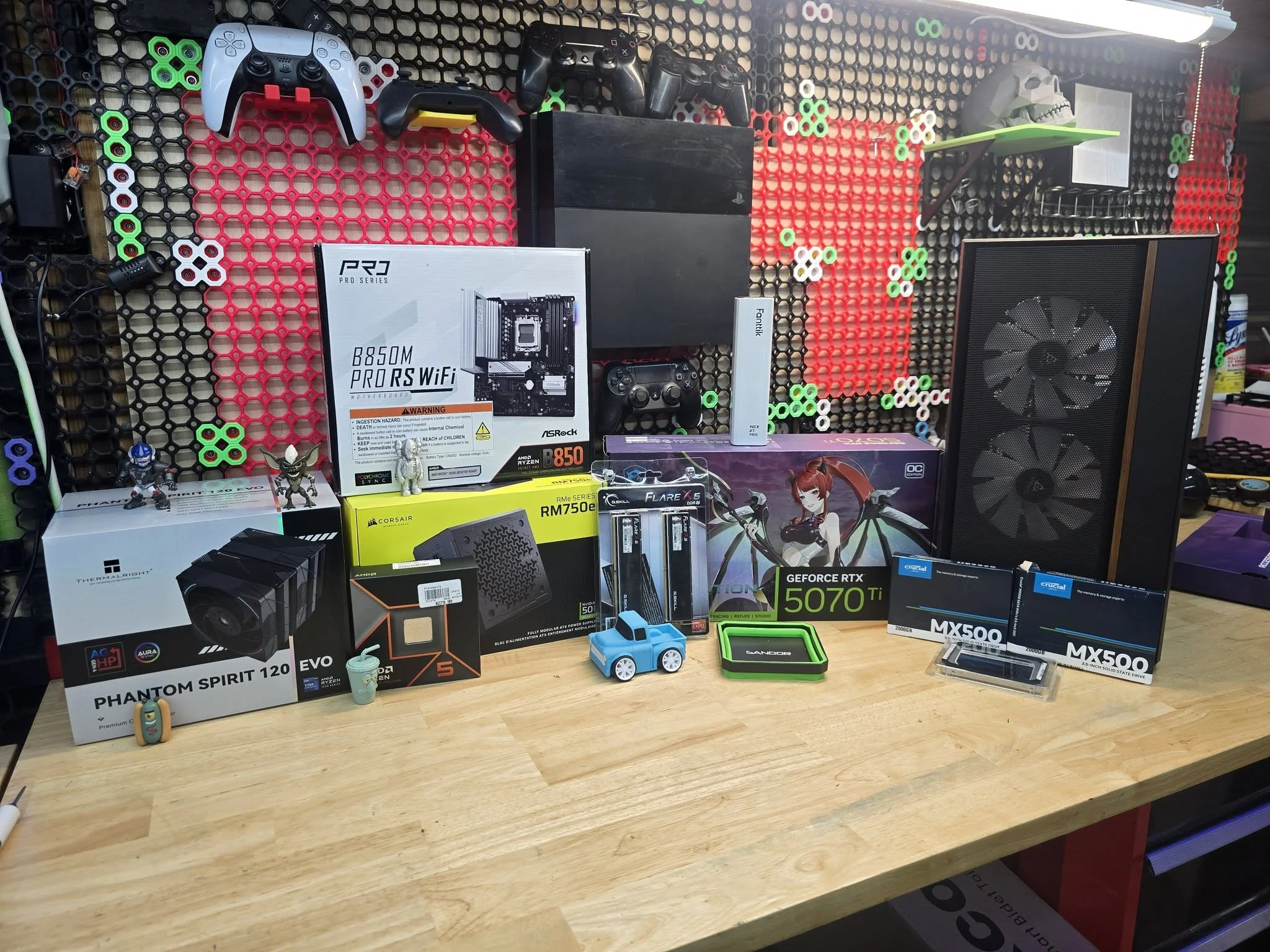
Before any tools come out, the build happens on paper. Compatibility mistakes (wrong socket, underpowered PSU, RAM that doesn’t fit the motherboard’s supported speeds) are the single most common reason first builds go wrong.
- CPU: AMD Ryzen or Intel Core, pick based on budget and whether you want to overclock
- Motherboard: must match the CPU’s socket (AM5 for current Ryzen, LGA1851 for current Intel) and your case’s form factor (ATX, Micro-ATX, Mini-ITX)
- GPU: the single biggest factor in gaming performance, budget accordingly since it’s usually the most expensive part
- RAM: 16GB is the realistic minimum for gaming in 2026, 32GB if you multitask or stream
- Storage: an NVMe SSD (500GB-2TB) for the OS and games
- PSU: check your GPU’s recommended wattage and add headroom, an 80+ Gold rated unit from a known brand is worth the extra cost
- Case: make sure it fits your motherboard size and has room for your GPU and cooler
Tools like PCPartPicker are useful here for catching compatibility issues before you spend money. Tom’s Hardware’s build guide keeps an updated list of tested components if you want a second opinion on part selection.
Step 2: Get Your Workspace and Tools Ready
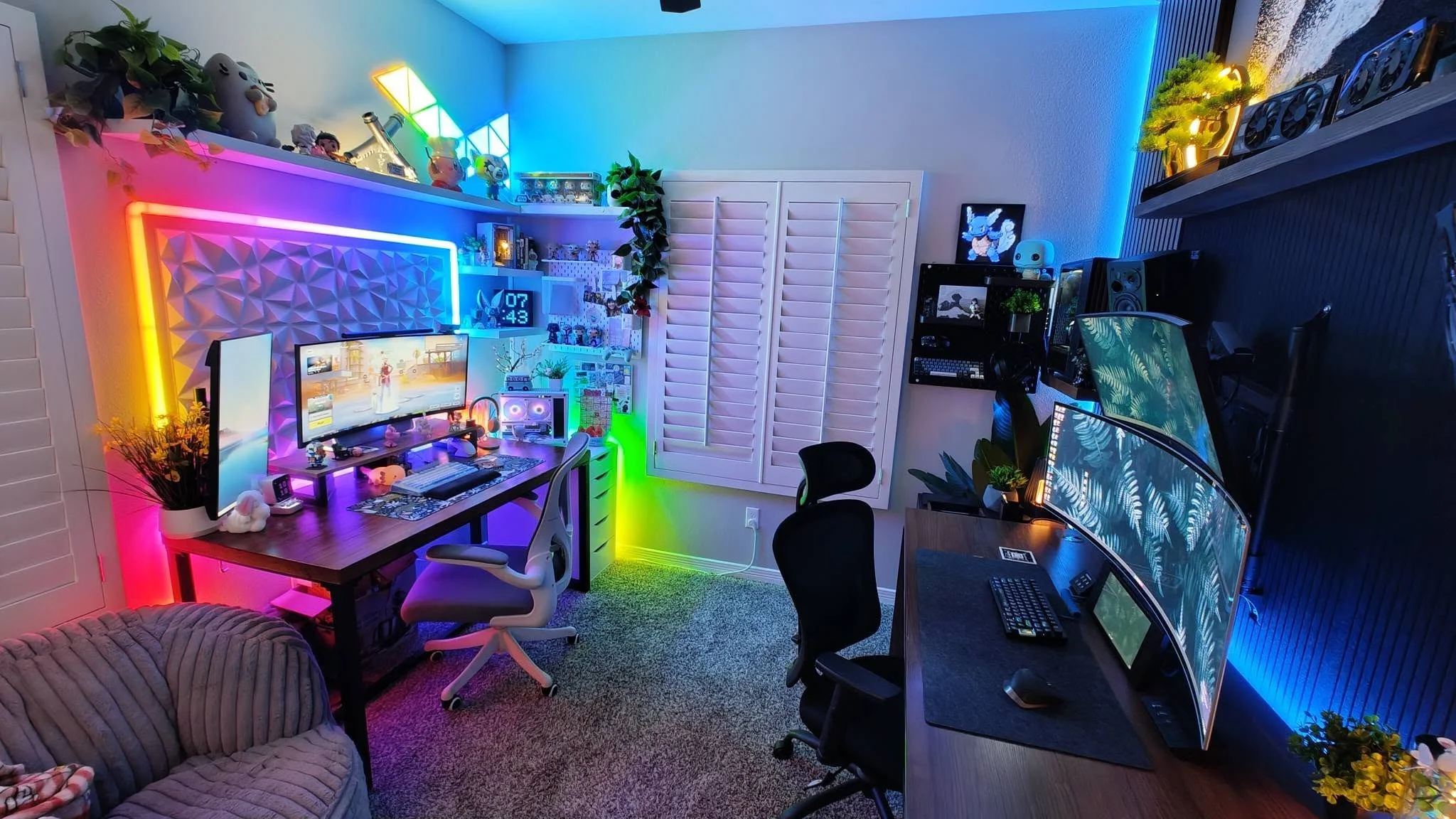
You don’t need much, but a little prep saves headaches later.
- A clean, well-lit table with room to lay out parts
- A Phillips #2 screwdriver (magnetic tip helps)
- Anti-static precautions: touch a grounded metal object before handling parts, or use an anti-static wrist strap
- Good lighting, a phone flashlight helps for peering into the case
- Keep all the little screw bags organized, cases usually label them by function
Step 3: Install the CPU, RAM, and Storage on the Motherboard First
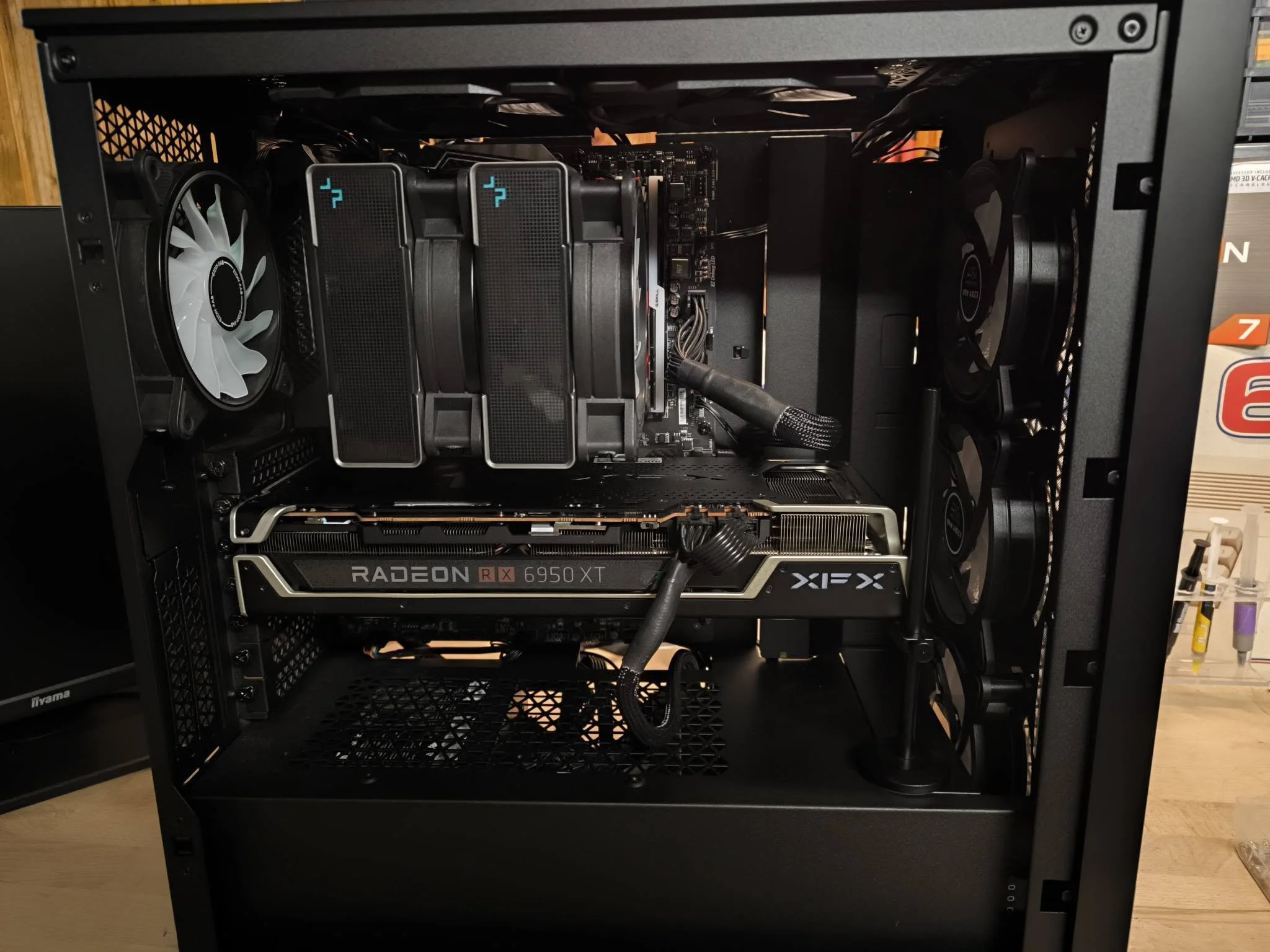
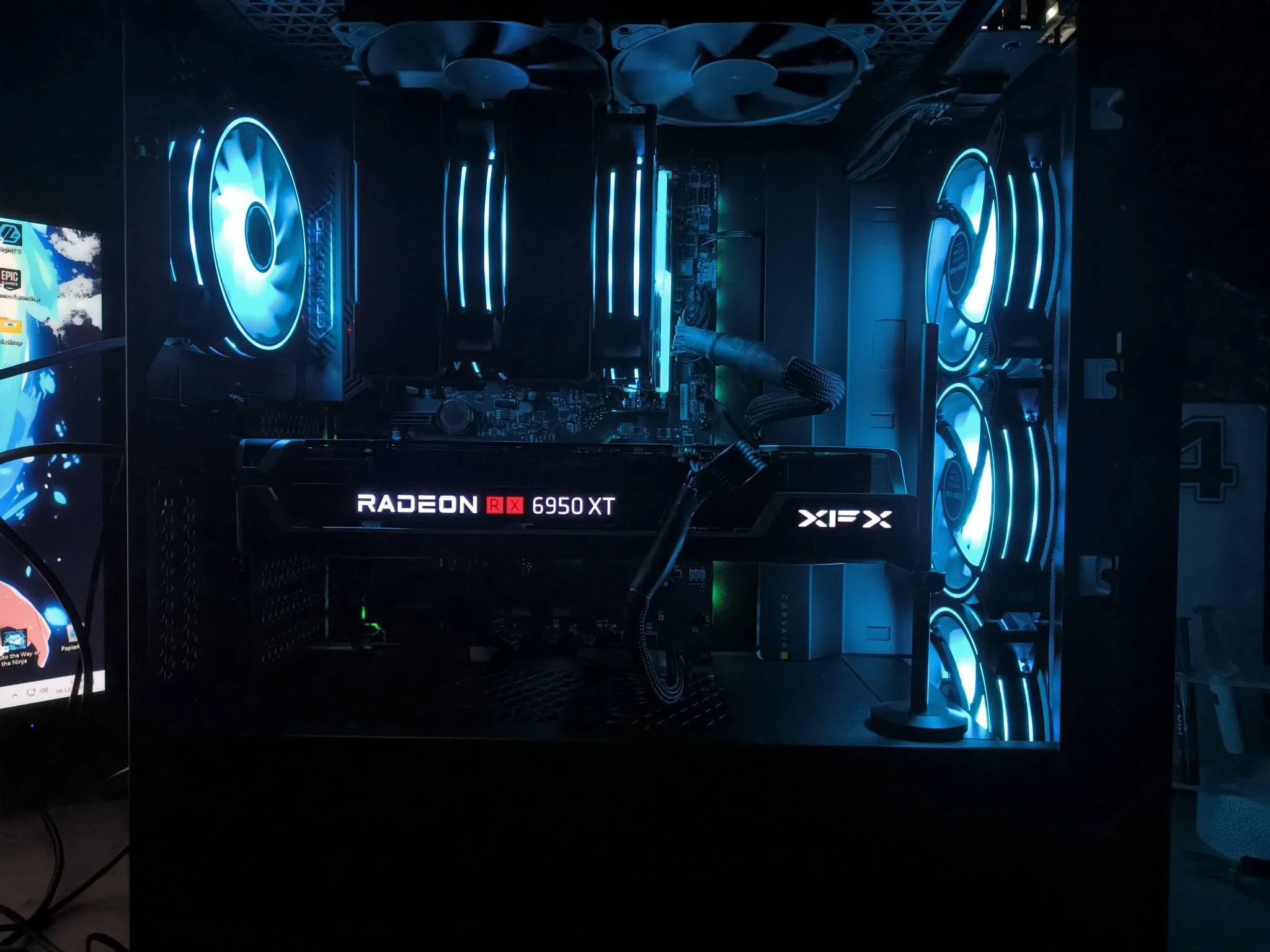
Most builders find it far easier to install the CPU, RAM, and the M.2 SSD onto the motherboard before it goes into the case, while you have full access to every angle.
- CPU: lift the socket lever, align the small triangle/notch marker on the CPU with the one on the socket, lower it gently (never force it), and close the lever
- CPU cooler: apply thermal paste (a pea-sized dot in the center if it’s not pre-applied) and mount the cooler per its instructions, tightening screws in a diagonal pattern for even pressure
- RAM: check your motherboard manual for which slots to use for dual-channel (usually slots 2 and 4), then push straight down until the clips snap
- M.2 SSD: slide it into the M.2 slot at an angle, press down, and secure with the tiny screw
Heads Up: RAM and M.2 slots need more force than people expect, but it should still feel like a firm, even push, not a struggle. If it’s not seating, double-check orientation before pushing harder.
Step 4: Prep the Case
Open both side panels and remove any shipping foam or twist ties inside. Install the standoffs (small brass spacers) if they aren’t preinstalled, these keep the motherboard from touching the metal case and shorting out. Most cases include a rear I/O shield, install that first since it clips in from inside the case.
Step 5: Mount the Motherboard and Install the PSU
- Lower the motherboard onto the standoffs, lining up the ports with the I/O shield
- Screw it down, starting loosely on all screws before tightening any one fully
- Mount the power supply in its bay, fan facing the direction your case is designed for (usually down, toward a bottom vent)
- Run the main 24-pin and 8-pin CPU power cables from the PSU to the motherboard before adding more components, it’s easier with fewer obstructions
Step 6: Install the GPU and Storage Drives
Remove the appropriate expansion slot covers on the back of the case, then seat the GPU firmly into the top PCIe x16 slot until it clicks. Screw the bracket to the case. Connect the PCIe power cables from your PSU directly to the GPU, most modern cards need one or more.
If you’re using a 2.5-inch SATA SSD or hard drive in addition to your M.2 drive, mount it in the case’s drive bay and connect both a SATA data cable and SATA power cable.
Step 7: Cable Management and Fans
This step doesn’t affect performance much on a well-cooled case, but tidy cables improve airflow and make future upgrades far less annoying.
- Route cables behind the motherboard tray where possible
- Connect case fans to motherboard fan headers or a fan hub, keeping intake fans (front/bottom) and exhaust fans (rear/top) in the correct direction
- Connect the front panel connectors (power switch, USB, audio) carefully, matching pins to the motherboard manual, this is the fiddliest part of any build
Step 8: First Boot and Installing Windows
Before closing the side panel, do a test boot. Connect a monitor, keyboard, and mouse, plug in the PSU, and hit the power button.
- If it powers on and you see the motherboard’s logo or BIOS screen, you’re in good shape
- Enter the BIOS (usually Delete or F2 at startup) to confirm your RAM is running at its rated speed via XMP/EXPO profile, and that all drives are detected
- Create a bootable Windows USB installer on another computer using Microsoft’s official Media Creation Tool
- Boot from that USB drive and follow the Windows setup prompts
- Once Windows is installed, download the latest GPU drivers directly from Nvidia or AMD, and Windows Update for chipset drivers
Only after everything boots cleanly and Windows is installed should you close up the case and tidy the final cable runs.
Common First-Build Mistakes
- Forgetting to plug in the 8-pin CPU power cable (system won’t post at all)
- Not applying thermal paste, or applying way too much
- Installing standoffs in the wrong holes for a smaller motherboard, causing a short
- Mixing up front-panel connector pins, usually just means the power button doesn’t work until it’s fixed
- Forgetting to remove the plastic film on the CPU cooler’s base plate
FAQs About Building a Gaming PC
1. How long does building a gaming PC take for a beginner?
Most first-timers should budget 2 to 4 hours, including breaks to double-check instructions and cable routing. It gets much faster on your second or third build.
2. Do I need any special tools?
A single Phillips #2 screwdriver handles almost the entire build. A zip-tie pack and anti-static wrist strap are helpful extras, but not strictly required if you ground yourself before touching parts.
3. Is it cheaper to build a gaming PC than buy a prebuilt?
Usually yes, building lets you skip the assembly labor markup and pick exactly the parts you want, though prebuilts sometimes win during GPU price spikes or when a retailer runs a bundle deal.
4. What if my PC doesn’t turn on the first time?
Recheck the 24-pin and 8-pin power connections first, those are the most common culprits. After that, reseat the RAM one stick at a time and confirm the front panel power switch cable is on the correct pins.
This guide is based on personal experience building and upgrading multiple gaming PCs over the years, combined with publicly available manufacturer documentation. Always follow your specific component manuals, since exact steps can vary slightly by brand.