Before a new tower even gets unboxed, most buyers just want a straight answer: do gaming PCs have HDMI ports so the thing can actually connect to a monitor or TV out of the box? The short version is almost always yes, but there’s more nuance worth knowing about where that HDMI port lives and whether it’s the one to actually use.
- Virtually every modern gaming PC has at least one HDMI port, either on the graphics card or the motherboard.
- The GPU’s HDMI port should be used for gaming, not the motherboard’s, since only the GPU port uses the dedicated graphics card.
- Most current graphics cards also include DisplayPort outputs, often multiple, alongside HDMI.
- Older or budget monitors may still rely on HDMI 2.0 rather than the newer 2.1 standard some GPUs support for higher refresh rates.
Two Different HDMI Ports, One Big Mistake
Here’s the part that trips people up: a gaming desktop often has two sets of video outputs, one on the motherboard’s rear I/O panel and one on the graphics card itself, and they are not interchangeable for gaming purposes.
- Motherboard HDMI/DisplayPort only works if the CPU has integrated graphics, and it completely bypasses the dedicated GPU
- GPU HDMI/DisplayPort is the one that actually routes through the graphics card and is the correct port for gaming performance
Plugging a monitor into the motherboard port on a system with a discrete GPU is a surprisingly common mistake, and it results in terrible performance since none of the graphics card’s power gets used at all.
Quick Warning: if a game runs shockingly badly right after setup despite having a solid GPU, check which port the monitor cable is plugged into before troubleshooting anything else.
What Real Prebuilt Systems Include
Checking actual GPU output configurations helps clarify what to expect. Most modern graphics cards, including the Nvidia GeForce RTX 50-series and AMD Radeon RX 7000/9000-series cards found in current prebuilts like the Skytech Archangel and iBUYPOWER Y40 Pro, ship with a mix of outputs, typically one HDMI port and two to three DisplayPort connections. That gives flexibility for multi-monitor setups without needing adapters.
For exact port counts and HDMI version support on a specific card, Nvidia’s official GeForce graphics card pages list full specifications per model.
HDMI 2.0 vs HDMI 2.1: Does It Matter
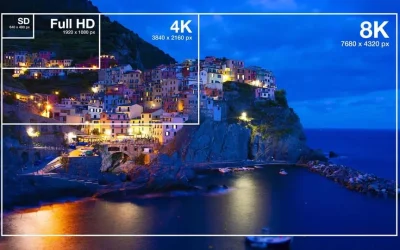
Not all HDMI ports are equal. HDMI 2.1 supports significantly higher bandwidth than 2.0, which matters for high refresh rate 4K gaming.
- HDMI 2.0: fine for 1080p and most 1440p gaming at standard refresh rates
- HDMI 2.1: needed to hit 4K at 120Hz+ or high refresh rate at higher resolutions
Most current-generation GPUs support HDMI 2.1, but it’s worth double-checking on budget cards or older stock. The Wikipedia entry on HDMI breaks down the bandwidth differences between versions in more technical detail for anyone comparing specs.
DisplayPort as the Better Default for PC Gaming
For a PC-to-monitor connection specifically (as opposed to PC-to-TV), DisplayPort is generally the preferred choice among PC gamers since it tends to support higher refresh rates and adaptive sync features like G-Sync and FreeSync more consistently across a wider range of monitors. HDMI remains the better pick when connecting to a TV, since TVs almost universally use HDMI rather than DisplayPort.
Frequently Asked Questions
1. How many HDMI ports does a typical gaming PC have?
Usually one HDMI port on the graphics card, plus a separate HDMI port on the motherboard’s rear panel if the CPU has integrated graphics. Only the GPU one should be used for gaming.
2. Can I use both HDMI and DisplayPort at the same time for multiple monitors?
Yes, as long as the graphics card has both output types, they can run simultaneously to drive a multi-monitor setup without needing any adapters.
3. Do I need an adapter to connect an older monitor to a new gaming PC?
Only if the monitor uses an older connection like VGA or DVI, which aren’t standard on current graphics cards. HDMI and DisplayPort monitors connect directly with no adapter needed.
4. Why is my gaming PC showing a black screen after connecting via HDMI?
The most common cause is plugging into the motherboard’s HDMI port instead of the graphics card’s, especially on a fresh build. Double-check the cable is in the GPU’s port, usually located lower on the rear panel.
This article reflects standard GPU and motherboard connectivity as of 2026. Exact port counts and HDMI version support vary by specific graphics card model, so check the manufacturer’s spec sheet for the exact card in question.