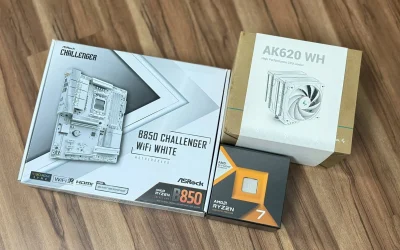
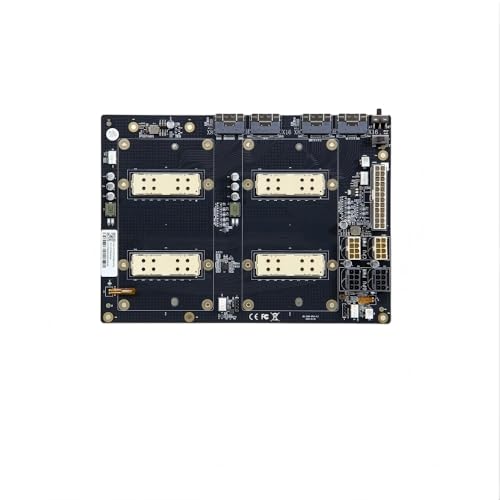
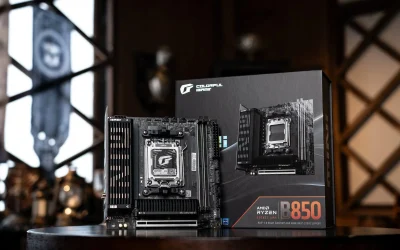
Picking a CPU is usually the fun part of planning a build, then the motherboard aisle turns into a wall of confusing model numbers and chipset names. Learning how to choose the right motherboard for your CPU really comes down to a short list of checks, done in the right order, rather than memorizing every chipset on the market.
- Always pick the CPU first, since it locks in the socket type and narrows the entire motherboard shortlist automatically.
- AMD and Intel CPUs are never cross-compatible, so half the market is eliminated the moment you choose a CPU brand.
- Chipset tier should roughly match CPU tier, pairing a budget chipset with a flagship CPU wastes potential.
- Form factor, RAM support, and PCIe generation round out the final decision once socket and chipset are settled.
Step One: Let the CPU Pick the Socket
The CPU socket is the single most important compatibility factor, and it’s non-negotiable. According to Tom’s Hardware’s motherboard buying guide, starting with the CPU and letting it dictate the socket is the most efficient way to narrow the field before comparing anything else.
- AMD Ryzen CPUs currently use the AM5 socket (current generation) or AM4 (previous generation)
- Intel Core CPUs use LGA 1851 (Core Ultra Series 2) or older LGA 1700 boards for previous generations
- AMD and Intel CPUs are never interchangeable between each other’s sockets under any circumstances
Checking your exact CPU model against the manufacturer’s official chipset page before buying anything avoids the most common and most frustrating compatibility mistake builders make.
Step Two: Match Chipset Tier to CPU Tier
Once the socket is locked in, the next decision is which chipset tier to buy within that socket family. Chipsets are generally split into budget, mid-range, and high-end tiers, each unlocking different features like overclocking support, PCIe lane count, and VRM quality.
| Tier | AMD Example | Intel Example | Best For |
|---|---|---|---|
| Budget | A620 | H810 | Basic builds, no overclocking |
| Mid-range | B650 | B860 | Gaming builds, sweet spot value |
| High-end | X670 / X870 | Z890 | Overclocking, high-end CPUs, max connectivity |
Pairing a flagship CPU with the cheapest available chipset is a common mistake, since weaker VRMs on budget boards can bottleneck a power-hungry CPU under sustained load.
Step Three: Decide If Overclocking Matters
Not every CPU can be overclocked, and not every chipset supports it even if the CPU can. On the AMD side, B650 and above generally support overclocking, while Intel requires a Z-series chipset (Z790, Z890) specifically for CPU overclocking.
- Skip paying extra for a Z-series or X-series board if you have no plans to overclock
- Check whether your specific CPU model is even unlocked for overclocking before chasing a high-end chipset
- Remember that overclocking also demands a capable cooler, not just a capable motherboard
Pro Tip: matching CPU and chipset tier roughly together usually produces the best value. A budget CPU paired with a flagship board, or vice versa, almost always wastes money somewhere in the build.
Step Four: RAM Type and Speed Support
Current-generation boards support DDR5 exclusively in most cases, while older sockets like AM4 and LGA1700 can come in either DDR4 or DDR5 variants depending on the specific board. Mixing this up is an easy mistake since DDR4 and DDR5 sticks are physically incompatible with each other’s slots.
- Confirm whether the board takes DDR4 or DDR5 before buying either the board or the RAM
- Check the maximum supported RAM speed (in MT/s) against what you plan to buy
- Higher-end boards generally support faster memory speeds and more consistent dual-channel performance
Our dedicated guide on RAM compatibility with motherboards goes deeper into matching memory kits to a specific board if this step needs more detail.
Step Five: Form Factor and Expansion Needs
The final piece is making sure the board physically fits the case and covers the ports and expansion slots actually needed, rather than picking the biggest, most feature-packed option by default.
- ATX: most expansion slots and connectivity, needs a mid-tower or larger case
- Micro-ATX: a reasonable middle ground, fewer slots but smaller footprint
- Mini-ITX: smallest option, typically one PCIe slot and fewer M.2 slots
Our motherboard form factor guide breaks down which size fits which case types in more detail, and the chipset explainer covers how chipsets differ beyond just the tier naming conventions.
Step Six: Double Check PCIe Generation and M.2 Slots
Storage and GPU bandwidth depend on the PCIe generation the motherboard supports, and this is one spec that varies more than people expect even within the same chipset family. A board advertised with PCIe 5.0 doesn’t always run every slot at that generation, often only the primary GPU slot or one specific M.2 slot gets the fastest speed.
- Check which specific slots run at PCIe 5.0 versus 4.0 or lower on the exact board model
- Count how many M.2 slots are actually usable at the same time, since some boards disable one slot when another is populated
- If running multiple NVMe drives, confirm lane-sharing limitations in the board’s manual before buying
These details live in the fine print of each board’s specification page, so it’s worth spending a few extra minutes comparing the manufacturer’s official spec sheet before finalizing a choice, rather than trusting the marketing headline alone.
Putting the Whole Checklist Together
Working through socket, chipset tier, overclocking needs, RAM type, form factor, and PCIe details in that order avoids most of the common mistakes builders run into when buying a motherboard. Skipping straight to brand preference or aesthetics before confirming the basics is how builders end up with a board that doesn’t actually fit their plans. Spending an extra ten minutes cross-referencing the exact model’s spec sheet against this checklist is far cheaper than returning a board after the fact, especially once a CPU and cooler are already mounted and the whole build has to come apart again. A few minutes of research upfront saves a much bigger headache down the line, and it’s time well spent before any money actually changes hands or a return shipping label becomes necessary after the wrong board shows up at the door.
1. Do I need to match my motherboard brand to my CPU brand?
Not by brand name, but by compatibility. AMD motherboards only work with AMD CPUs, and Intel motherboards only work with Intel CPUs, regardless of which board manufacturer (ASUS, MSI, Gigabyte, ASRock) made the physical board.
2. What happens if I buy a motherboard with the wrong socket?
The CPU simply won’t fit physically, since socket pin layouts and shapes differ between generations and brands. It’s not a matter of “working poorly,” it won’t install at all.
3. Is a more expensive chipset always better for gaming?
Not necessarily. For gaming specifically, a mid-range chipset usually delivers nearly identical frame rates to a high-end one, since the GPU and CPU matter far more than chipset tier for gaming performance.
4. Can I use a current motherboard with an older CPU?
Only if the socket and chipset generation match. Current-generation boards typically don’t support CPUs from two or more generations back, even within the same socket family in some cases.
This article is for general informational purposes. Always verify exact CPU and motherboard compatibility through the manufacturer’s official QVL or compatibility list before purchasing.