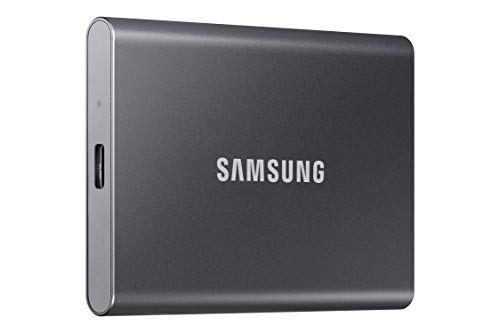
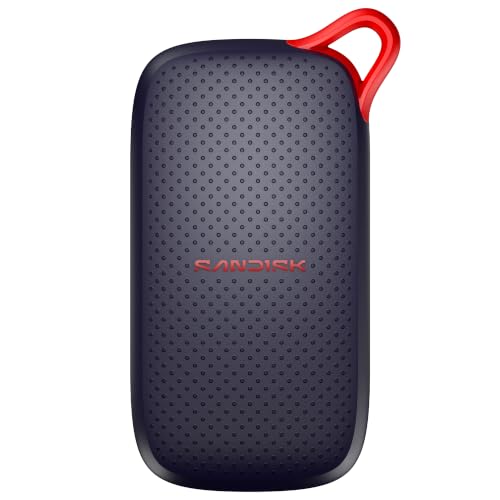
Shopping for a new PC or an upgrade almost always runs into the same decision point. Understanding the difference between HDD and SSD storage is the single most useful thing to know before spending money on either one, since it affects everything from boot times to how long a laptop battery lasts.
- HDDs use spinning magnetic platters, while SSDs use flash memory chips with no moving parts.
- SSDs are dramatically faster, with read speeds often 10 times higher and random access far beyond that.
- HDDs remain cheaper per terabyte, making them better suited for bulk storage and backups.
- SSDs are more durable for portable devices since they have nothing that can mechanically fail from shock or drops.
How Each One Actually Works
A hard disk drive stores data magnetically on spinning platters, read and written by a moving mechanical arm, similar in principle to a record player. A solid-state drive stores data electronically in NAND flash memory chips, with no moving parts at all. This fundamental difference is why SSDs are faster, quieter, and more shock-resistant, and it is covered in detail on the Wikipedia page for solid-state drives and the equivalent page for hard disk drives.
Speed: Where the Gap Is Largest
This is the area where the two technologies differ the most dramatically:
- Sequential read speeds: HDDs typically manage 80 to 160 MB/s, while SATA SSDs reach around 500 to 550 MB/s and NVMe SSDs can exceed 3,500 to 7,000 MB/s.
- Random access (small files): HDDs perform in the low hundreds of IOPS, while SSDs routinely perform in the tens of thousands, a gap of well over 50 times in many benchmarks.
- Boot times: a system booting from an HDD often takes 30 to 60 seconds, while the same system on an SSD can boot in under 15 seconds.
Tom’s Hardware ran extensive side-by-side testing on this exact comparison, and their SSD vs HDD benchmark results are worth a look for anyone who wants to see the numbers rather than take it on faith.
Reality Check: the speed difference is not subtle in everyday use. Loading a game level, opening a large spreadsheet, or launching an operating system all feel noticeably faster on an SSD, not just in benchmark charts.
Price Per Gigabyte
HDDs still hold a clear price advantage for raw storage capacity. A large-capacity HDD typically costs noticeably less per terabyte than even a budget SATA SSD, and the gap widens further against high-performance NVMe drives. This is exactly why HDDs remain common in setups that need several terabytes of storage for media libraries or backups, even in otherwise SSD-based systems.
Durability and Noise
Because HDDs rely on a spinning platter and a moving read/write head, they are more vulnerable to damage from drops, vibration, and shock, especially while running. SSDs have no moving parts, so they handle being moved or bumped far better, which is part of why virtually every modern laptop ships with an SSD rather than a spinning drive. HDDs also produce audible spinning and clicking noises during use, while SSDs run completely silent.
Side-by-Side Comparison
| Factor | HDD | SSD |
|---|---|---|
| Technology | Spinning magnetic platters | NAND flash memory chips |
| Typical speed | 80-160 MB/s | 500-7000+ MB/s |
| Price per TB | Lower | Higher |
| Durability | Vulnerable to shock/drops | No moving parts, shock resistant |
| Noise | Audible spinning/clicking | Silent |
| Best use | Bulk storage, backups | OS, programs, games |
Lifespan Considerations
Both drive types have finite lifespans, just measured differently. HDDs tend to fail mechanically, often after years of continuous use, with moving parts simply wearing out. SSDs are rated by total bytes written (TBW), reflecting how flash memory cells degrade slightly with each write cycle, though modern consumer SSDs are rated for many years of typical daily use before reaching that limit. In practice, both drive types commonly last 5 years or more under normal consumer workloads, with failure patterns differing more than the actual timelines.
Which One Actually Makes Sense
For most people building or upgrading a PC today, the practical answer is not strictly one or the other:
- Choose an SSD for the operating system, installed programs, and any games or software where load times matter.
- Choose an HDD for large media libraries, backups, or archived files that do not need fast access.
- Combine both in a desktop PC to get SSD speed for daily use and HDD capacity for bulk storage at a lower overall cost.
Anyone planning a build around this exact decision may find it useful to see how storage choices fit into the rest of the parts list, covered in the gaming PC build guide.
What About SSHDs?
A small number of drives, called SSHDs or hybrid drives, combine a small amount of flash memory with a traditional spinning platter inside a single unit, automatically caching frequently used files on the faster flash portion. These were more common several years ago as a budget middle ground, but falling SSD prices have made a dedicated SSD plus a separate HDD a more popular and more predictable combination today.
Power Consumption and Heat
SSDs generally draw less power than HDDs, since there is no motor spinning a platter or an actuator arm moving back and forth. This matters most for laptop battery life, where swapping a spinning hard drive for an SSD is one of the more noticeable upgrades a laptop owner can make, both in terms of speed and how long the battery lasts on a single charge. HDDs also generate more heat during sustained use due to the moving components, while SSDs tend to run cooler under typical consumer workloads, though high-end NVMe drives can run warm enough under heavy sustained writes that some motherboards include small heatsinks specifically for that slot.
Form Factors Worth Knowing
HDDs commonly come in 3.5-inch (desktop) and 2.5-inch (laptop) sizes. SSDs come in several formats: 2.5-inch SATA (a drop-in replacement for a laptop or desktop HDD), M.2 (a small stick that plugs directly into the motherboard), and less commonly, PCIe add-in cards for specialized high-performance use. Knowing which format a specific computer supports before buying a drive avoids the common mistake of purchasing an M.2 SSD for a system that has no M.2 slot available.
Frequently Asked Questions
1. Is an SSD always better than an HDD?
For speed and durability, yes. For raw storage capacity per dollar, HDDs still win, which is why many systems use both rather than choosing one exclusively.
2. How much faster is an SSD than an HDD in real use?
Boot times, file transfers, and program launches are typically several times faster, and random file access (like loading many small files at once) can be tens of times faster.
3. Do SSDs wear out faster than HDDs?
Not under typical consumer use. Modern SSDs are rated for years of daily writes before reaching their rated endurance limit, comparable to a typical HDD’s mechanical lifespan.
4. Can I replace my HDD with an SSD in an old laptop?
In most cases yes, as long as the laptop has a 2.5-inch SATA bay or compatible M.2 slot. It is one of the most effective upgrades for breathing new life into an older machine.
This article is for general informational purposes only. Actual speeds and lifespans vary by specific drive model and workload.