Setting up a private cloud requires dependable components that operate around the clock. When evaluating what is the difference between HDD and SSD storage for bulk archiving, finding the best hard drives for QNAP NAS ensures that your network arrays stay accessible, responsive, and properly protected against hardware failure.
Recommended by Us
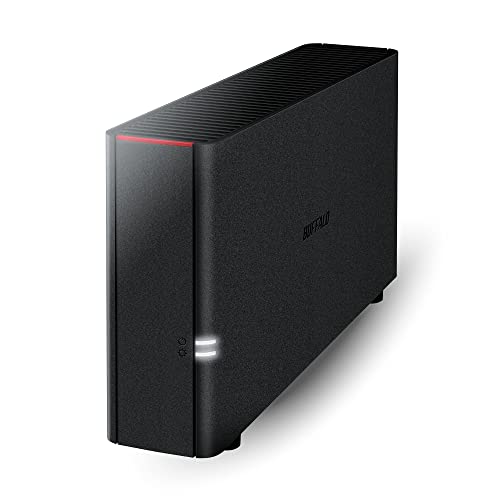
- No monthly cloud subscription fees required for remote file access
- Comes with the 2TB drive included for quick out-of-the-box deployment
- Enhanced security via closed operating system and SSL encrypted transfers
- Configurable folder permissions keep private and shared data separated
- Single-bay design does not offer multi-drive RAID redundancy
- Mac compatibility is limited to macOS 15 Sequoia and earlier releases
- Manufacturer listing does not specify exact data transfer speeds

- Spacious 4TB storage volume handles extensive shared business or media archives
- Enterprise-tier drive construction fits demanding round-the-clock server environments
- Direct compatibility with QNAP Turbo NAS internal expansion slots
- Manufacturer specifications do not provide exact read and write transfer speeds
- Standard 3.5-inch profile requires desktop enclosures or NAS trays rather than portable use

BUFFALO TeraStation Essentials 16TB Desktop NAS
- Comes pre-configured with hard drives ready to deploy in RAID 5
- Integrated 2.5GbE networking works over existing cable setups
- Hardware-level 256-bit drive encryption for enterprise data safety
- Direct integration with major cloud storage providers
- Specific read and write transfer rates are not listed
- Configured RAID 5 limits out-of-the-box usable capacity to 12TB rather than the full 16TB
- Desktop enclosure is bulkier than single-drive backup options

- Ready to use immediately with pre-configured RAID 5 IronWolf drives
- Flexible hardware RAID options selectable directly on the device
- Versatile usage as both a PC direct-attached unit and a QNAP NAS expansion enclosure
- Key-lockable drive trays prevent accidental drive ejection
- Internal drive connectivity is limited to SATA 3Gb/s speeds
- Manufacturer specifications do not specify real-world transfer speed ratings
- Hard drives are included and pre-configured, saving setup time
- Native 2.5GbE port improves network throughput over standard 1GbE
- Flexible RAID choices including RAID 0, 5, and 6 redundancy
- Robust security with 256-bit encryption and a closed architecture
- Maximum network port speed tops out at 2.5GbE rather than 10GbE
- Specific read and write transfer rates are not stated in manufacturer specifications
- Eliminates monthly cloud subscription fees with a private home cloud
- Comes with a 4TB hard drive already installed in the bay
- Enhanced security with SSL file encryption and a closed software ecosystem
- Bundled backup software simplifies automated protection for multiple PCs
- Transfer speeds and network interface standards are not specified in the product listing
- Software compatibility is limited to macOS 15 (Sequoia) and earlier for Mac users
- Single-drive bay format offers no internal drive mirroring redundancy
- Comes with a 6TB internal hard drive pre-installed
- Zero subscription fees compared to recurring public cloud services
- Closed operating environment limits external security threats
- Folder-level access restrictions maintain individual privacy
- Single-bay design provides no internal RAID drive mirroring redundancy
- Mac software compatibility is limited to macOS 15 and earlier versions
- Specific read and write transfer rates are not provided in the listing
Selecting Storage for Network Expansion and Backups
When outfitting a home server or office enclosure, your storage choice depends on whether you need individual replacement drives or a complete multi-bay expansion setup. Continuous operations demand drives that handle shared workloads without overheating. Unlike desktop builds where builders check how many M.2 SSD slots does a motherboard have to maximize storage lines, network enclosures rely heavily on 3.5-inch SATA platters for bulk data protection.
If you want direct capacity expansion with pre-configured redundancy, the QNAP TR-004 12TB is the one I would go with because its lockable four-bay system arrives configured in RAID 5 using IronWolf drives. The hardware brand Seagate includes a three-year data recovery plan for extra security during unexpected disk failures. If you only need a single replacement disk for an existing bay, I would point toward the QNAP 4TB Turbo due to its standard 3.5-inch Serial ATA interface. For users who prefer a standalone four-bay appliance ready out of the box with 2.5GbE networking, I suggest looking at the BUFFALO TeraStation Essentials 16TB to easily manage local files.
FAQs
1. Can you use desktop hard drives in a network enclosure?
Desktop drives can physically connect over SATA, but network environments place continuous strain on storage components. Drives engineered for network use manage thermal output and multi-drive vibrations much better than basic desktop units. Understanding where is the SSD located in a computer highlights how internal PC setups differ from dense network drive cages that run constantly.
2. What RAID mode provides the best balance of safety and capacity?
RAID 5 offers a practical balance for setups with three or more drive bays. It reserves the equivalent capacity of one drive for parity data, allowing the entire array to survive a single disk failure without data loss. Rebuilding the array after replacing a faulted drive takes time, but it protects files without consuming half your storage like mirroring.
3. Should you mix different drive capacities in the same array?
Standard RAID arrays generally scale down to match the capacity of the smallest drive installed, which leaves excess storage unused. While some enclosures allow expansion modules or independent storage pools, keeping identical drive sizes ensures predictable performance and avoids configuration headaches. When optimizing storage efficiency across systems, readers often ask should you compress an SSD drive to preserve free space.
4. Why are 3.5-inch mechanical drives still preferred for network storage?
Mechanical hard drives deliver substantial storage volume at a significantly lower cost per gigabyte than solid-state alternatives. While solid-state storage provides instant access times, high-capacity mechanical drives remain ideal for bulk media collections, scheduled system backups, and shared file libraries. Enclosures easily accommodate multiple high-capacity platters to achieve tens of terabytes within a compact footprint.
Editor’s Verdict
For overall utility and simple deployment, the best hard drives for QNAP NAS are found in pre-configured multi-drive bundles. I recommend the QNAP TR-004 12TB for users needing immediate RAID 5 protection and expansive room for growth, while the QNAP 4TB Turbo remains the right pick when replacing a single bay drive.