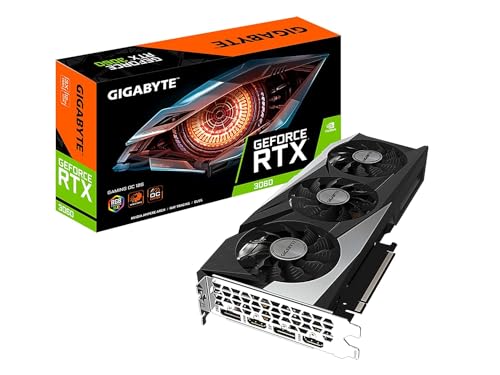
A three-year-old graphics card feels noticeably slower in the same games it used to handle without issue, and it’s tempting to assume the hardware itself has simply worn down. Does GPU performance degrade over time the way a phone battery loses capacity, or is something else going on entirely?
- The silicon inside a GPU doesn’t wear out or lose raw performance capability just from normal use over time.
- Apparent slowdowns are usually caused by dust buildup, dried thermal paste, or drivers rather than the chip itself aging.
- Newer games demanding more from hardware each year can make an unchanged GPU feel comparatively slower.
- Proper maintenance like reapplying thermal paste and cleaning dust can restore most of the lost perceived performance.
Does the Chip Itself Actually Wear Out
This is the core misconception worth clearing up first. A GPU’s silicon doesn’t degrade from normal use the way a mechanical part does. Barring physical damage, heavy sustained overclocking well beyond rated specs, or a manufacturing defect, the actual processing chip is capable of the exact same performance on day 1,000 as it was on day one.
What does age and wear down are the mechanical and material components surrounding that chip:
- Fans: Bearings wear with spin hours, eventually leading to noise, reduced RPM, or complete failure.
- Thermal paste: Dries out and loses effectiveness over roughly 2-5 years depending on quality and heat exposure, raising operating temperatures.
- Dust accumulation: Clogs heatsink fins over time, reducing airflow and raising temps even with fully functional fans.
- Capacitors and VRM components: Can degrade very slowly over many years, though this is a longer-term concern than most owners will encounter within a typical upgrade cycle.
How These Factors Create the Illusion of Lost Performance
When cooling degrades, the GPU runs hotter under the exact same workload. Modern GPUs respond to rising temperatures with thermal throttling, automatically lowering clock speeds to stay within safe limits. That throttling is what actually shows up as lower frame rates, not any change in the chip’s raw capability.
| Cause | Effect on Performance | Fixable? |
|---|---|---|
| Dried thermal paste | Higher temps, more throttling under load | Yes, repaste the GPU |
| Dust buildup in heatsink | Reduced airflow, higher temps | Yes, clean with compressed air |
| Aging, weaker fans | Less airflow at the same RPM setting | Sometimes, replace fans if possible |
| Outdated or corrupted drivers | Suboptimal performance in newer games | Yes, clean reinstall drivers |
| Newer, more demanding games | Same hardware produces lower FPS in newer titles | No, this reflects rising requirements, not hardware decline |
The Role of Rising Game Requirements
It’s easy to overlook this one, but it’s often the biggest single factor behind a card “feeling” slower over time. Game engines and graphics settings get more demanding every year. A GPU that ran a 2021 title at 100+ FPS on high settings might only manage 60 FPS in a demanding 2026 release at the same settings, not because the card got weaker, but because the bar it’s being measured against moved.
This is a completely separate issue from actual hardware degradation, and it’s worth distinguishing clearly:
- Benchmark the card in an older game it used to run well. If performance there is unchanged, the card itself is fine.
- Compare against published reviews or benchmarks of the same card model from launch, if available, to spot any real-world discrepancy.
No Sugarcoating: Running a game at max settings three years after a card’s release and getting worse FPS than launch reviews showed isn’t proof the GPU degraded, it usually just means that specific game got more demanding through updates or was never well optimized to begin with.
How to Restore Lost Performance
If a GPU genuinely seems slower than it used to be under identical conditions, a maintenance pass is the right first step before assuming it needs replacing:
- Open the case and inspect the heatsink for visible dust buildup, cleaning it out with compressed air.
- Monitor temperatures with GPU-Z or HWInfo during a game session to check for unusually high numbers compared to the card’s rated specs.
- If temps are noticeably high (often above 80-85C under load for cards that used to run cooler), consider repasting following a proper GPU cleaning guide.
- Update to the latest stable GPU drivers, since performance optimizations for newer games are released regularly.
- Run a GPU stress test to confirm stability and check for any throttling under sustained load.
When It Actually Might Be Hardware Decline
It’s not impossible for a GPU to have a legitimate hardware-related performance issue, just less common than people assume:
- A card that was heavily overclocked or run at high voltage for extended periods may show degraded stability sooner than a stock-clocked equivalent.
- Memory errors from aging or marginal VRAM chips can cause visible artifacts and instability that look like a performance drop.
- A card previously used for cryptocurrency mining around the clock for years may show more wear on fans and thermal interface materials than typical gaming use would produce.
Checking how long GPUs typically last provides useful context on realistic lifespan expectations across different usage patterns, including heavier workloads like mining or professional rendering.
Comparing to How CPUs and Other Components Age
It’s worth noting this isn’t unique to GPUs. CPUs follow essentially the same pattern, where the processing core itself doesn’t lose capability from normal use, but thermal paste, dust, and cooler degradation produce the same perceived slowdown over time. Power supplies, on the other hand, can genuinely lose efficiency and stable output capacity as capacitors age, which is a more real form of hardware degradation than what typically happens to a GPU or CPU die itself.
Understanding this distinction helps set realistic expectations when troubleshooting any aging PC component, not just a graphics card specifically. The symptom of “it feels slower than it used to” almost always has a maintenance-related explanation before it points to irreversible hardware decline.
FAQ
1. Will reinstalling Windows fix a GPU that feels slower than before?
It can help if the slowdown is caused by driver corruption or software bloat, but it won’t fix a thermal throttling issue caused by dust or dried thermal paste, since that’s a hardware maintenance problem, not a software one.
2. Does undervolting help restore lost performance over time?
Undervolting mainly helps with heat and power draw rather than restoring lost performance, though lower temps from undervolting can indirectly reduce throttling if heat was the underlying cause of the slowdown.
3. How often should GPU thermal paste be replaced?
Every 3-5 years is a reasonable interval for most users, though cards running consistently hot or used for mining benefit from more frequent repasting, sometimes every 1-2 years.
4. Can software updates from Nvidia or AMD actually improve performance on an older card?
Yes, driver updates occasionally include optimizations for specific games or general performance improvements, even on cards that are several generations old, though the gains are usually incremental rather than dramatic.
Final Take
A GPU’s actual processing silicon doesn’t degrade from ordinary use, but everything surrounding it, from thermal paste to dust buildup to fan bearings, absolutely does age and can create the appearance of declining performance. A thorough cleaning and repaste restores most cards to close to their original performance, and separating that from the simple reality of newer games demanding more each year clears up most of the confusion around this question.
Disclaimer: Individual results from cleaning or repasting vary by card model and usage history. Heavily overclocked or continuously run cards may show different wear patterns than typical consumer use.