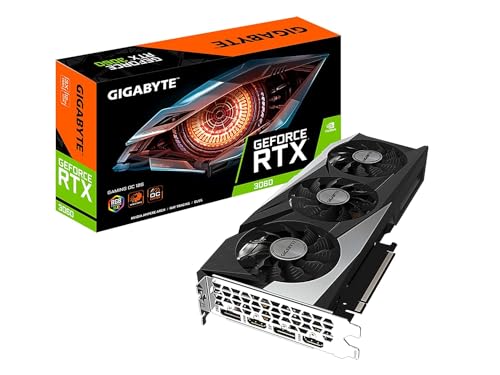
Shopping for a new graphics card gets complicated fast once the question of fit comes up. Does a GPU need to be compatible with your motherboard, or will basically any card from Nvidia, AMD, or Intel just work in any PCIe slot regardless of what motherboard it’s going into?
- Nearly every modern GPU fits any motherboard with a PCIe x16 slot thanks to backward compatibility across PCIe generations.
- Physical case clearance, not motherboard compatibility, is the more common fitment problem builders actually run into.
- Power supply capacity and the number of available power connectors matter just as much as slot compatibility.
- Older motherboards with early PCIe versions still work with newer GPUs, just potentially at reduced bandwidth in edge cases.
The Good News: PCIe Is Built for Backward Compatibility
The PCI Express standard was designed from the start so that newer and older generations work together. A graphics card using PCIe 5.0 will physically fit and function in a motherboard with a PCIe 3.0 slot, and vice versa. The connector shape and pin layout for x16 slots has stayed consistent across every PCIe generation to date.
The physical length of a PCIe x16 slot sits at roughly 89mm with 164 pins, and that hasn’t changed as the underlying data transfer speeds have increased with each new generation. More technical detail on the standard’s evolution is available on the Wikipedia page for PCI Express.
What Actually Changes Between PCIe Generations
If physical fit isn’t the issue, what does change between generations is bandwidth. Here’s a simplified comparison:
| PCIe Generation | Approx. x16 Bandwidth | Real-World Gaming Impact |
|---|---|---|
| PCIe 3.0 | ~16 GB/s | Minor FPS difference with current flagship GPUs, usually under 5% |
| PCIe 4.0 | ~32 GB/s | Negligible difference for most current cards |
| PCIe 5.0 | ~64 GB/s | No meaningful gaming benefit yet for current-gen GPUs |
In practice, even a high-end GPU plugged into an older PCIe 3.0 motherboard will run games at nearly identical frame rates to the same card on PCIe 4.0 or 5.0, since no current consumer GPU actually saturates the bandwidth PCIe 3.0 x16 already provides.
So What Compatibility Issues Actually Come Up
If slot compatibility is rarely the real problem, these are the issues that trip people up in practice:
- Physical case clearance: A GPU might be too long, too tall, or too thick for a specific case, even though it would technically plug into any motherboard’s slot.
- Power supply capacity: The GPU may need more wattage or more power connectors than the current PSU provides.
- CPU bottleneck: Pairing a very powerful GPU with an older or weaker CPU can limit how much of the card’s performance is actually usable in certain games.
- BIOS support: Very old motherboards occasionally need a BIOS update to properly recognize and boot with a brand new GPU, particularly across major chipset generation gaps.
- Slot lane sharing: Some motherboards share PCIe lanes between the GPU slot and M.2 storage slots, which can reduce the GPU to x8 if certain NVMe drives are also installed.
Worth Noting: A GPU “not working” after installation is far more often traced back to an unseated power cable, an unseated card in the slot, or a dead monitor cable than any actual motherboard incompatibility.
How to Check Before Buying
- Confirm the case has enough physical clearance for the GPU’s length, height, and thickness in slots, which the manufacturer lists on the product page.
- Check the motherboard has an available PCIe x16 slot positioned for full bandwidth, typically the topmost slot closest to the CPU socket.
- Use a PSU wattage guide for your GPU to confirm the power supply can handle the card’s draw with reasonable headroom.
- Check the motherboard’s CPU support list and BIOS version if pairing an older board with a brand new GPU, just to rule out needing a BIOS update first.
- Review whether motherboard choice affects gaming performance for context on what the board actually does and doesn’t influence.
Does Motherboard Form Factor or Chipset Matter for GPU Choice
Not in terms of whether a given GPU will physically work, no. An ITX, mATX, and full ATX motherboard all use the same PCIe x16 slot standard. What form factor does affect is case selection and how much room there is around the GPU once installed, which circles back to the clearance issue rather than true electrical compatibility.
Chipset generally matters more for CPU compatibility and feature sets like overclocking support, M.2 slot count, or USB connectivity than it does for GPU compatibility specifically. The guides on motherboard form factors and motherboard chipsets cover these distinctions in more detail for anyone planning a full build rather than just a GPU upgrade.
Laptop GPUs Are a Different Story Entirely
Everything above applies to desktop builds with a dedicated PCIe slot. Laptop GPUs are an entirely different situation, since they’re typically soldered directly to the motherboard and cannot be swapped or upgraded independently at all, regardless of compatibility standards. Anyone coming from laptop ownership and assuming the same limitations apply to desktops is working from the wrong mental model entirely.
A Quick Pre-Purchase Checklist
Before clicking buy on a new graphics card, running through a short checklist avoids most of the headaches described above:
- Measure the available space in the case from the rear bracket to the nearest obstruction, and compare against the GPU’s listed length.
- Confirm the case supports the card’s height if it’s a triple-slot design, since some cards extend beyond the standard two-slot width.
- Verify the PSU’s total wattage and available connector types match what the GPU requires, with some headroom to spare.
- Check that the motherboard’s topmost PCIe x16 slot is free and not already occupied by another expansion card.
- If building around an older platform, check the motherboard manufacturer’s support page for a BIOS update that may be needed for newer CPU and GPU combinations.
Working through this list takes a few extra minutes but prevents the far more common scenario of a GPU arriving and then discovering a clearance or power problem after the fact.
FAQ
1. Will an old motherboard stop a brand new GPU from working at all?
In almost all cases, no, as long as there’s a PCIe x16 slot and a BIOS recent enough to recognize the CPU installed. The GPU itself will function, possibly with a very small bandwidth-related performance difference depending on the PCIe generation gap.
2. Do I need a specific chipset to run a high-end graphics card?
No, chipset doesn’t gate GPU compatibility. Even budget chipset motherboards with a PCIe x16 slot can run flagship GPUs, though pairing a weak CPU with a high-end GPU can create a bottleneck unrelated to the motherboard itself.
3. Can a GPU be too powerful for a motherboard?
Not in terms of the GPU damaging or overwhelming the motherboard. The practical limits are case clearance, power supply capacity, and CPU bottlenecking rather than the motherboard rejecting a GPU for being “too powerful.”
4. Does PCIe lane sharing with M.2 drives actually hurt gaming performance?
Usually the impact is minimal for gaming even if the GPU slot drops from x16 to x8 due to lane sharing, since most current GPUs don’t fully saturate even PCIe 3.0 x16 bandwidth in typical game workloads.
Final Take
GPU and motherboard compatibility is far less of a concern than most first-time builders assume, since the PCIe standard was built specifically to avoid this exact problem. The real planning work goes into case clearance, power supply capacity, and making sure the rest of the build doesn’t bottleneck the new card, not whether the slot itself will physically accept it.
Disclaimer: While PCIe backward compatibility is broad, always verify BIOS support and physical clearance for your specific motherboard, case, and GPU model combination before purchasing, particularly with very old hardware.