A cluttered desk with a monitor propped up on its stock stand only has so much flexibility, and once a second screen enters the picture, that stand often becomes the whole problem. Monitor arms fix that, but the moment you start shopping, it becomes clear there are several distinct types of monitor arms, each built for a different desk setup, monitor count, and budget. Getting the mounting right also ties directly into other design choices, like how thick a monitor’s bezel is or how the panel handles off-axis viewing once it is raised or angled on an arm.
- Monitor arms differ mainly by how many screens they hold, how they mount to the desk, and how they hold tension.
- Gas spring arms allow smooth, tool-free height adjustment, while fixed or spring-tension arms cost less but move less freely.
- Clamp mounts are the most common and reversible, while grommet mounts need a drilled hole but sit flush and stable.
- Weight capacity and VESA compatibility matter more than style, since an undersized arm will sag or fail to hold a heavier monitor.
Arms Grouped by Number of Monitors
The most basic way to categorize monitor arms is by how many screens they are built to support.
- Single monitor arms: the most common type, supporting one display on a single articulating or pole-style arm
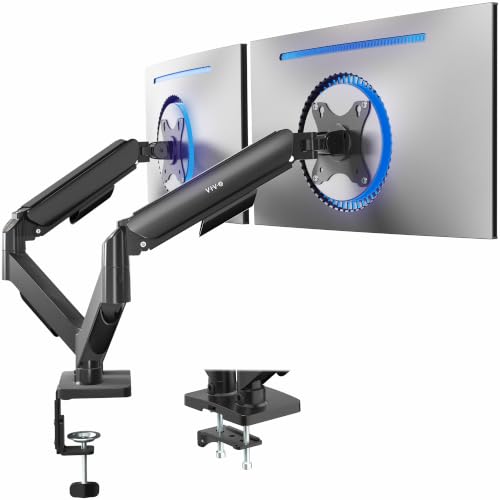
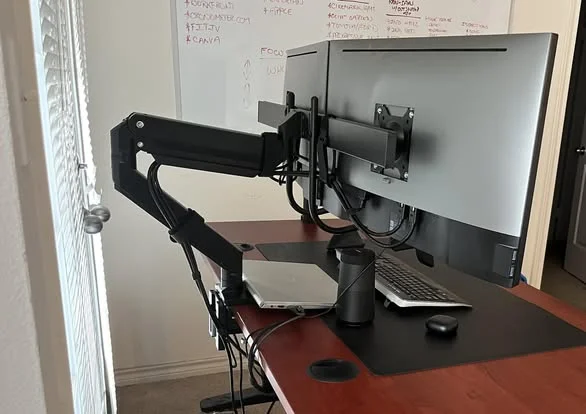
- Dual monitor arms: hold two displays from one base point, which means only one clamp or grommet hole is needed on the desk
- Triple and quad monitor arms: larger setups for multi-screen workstations, trading, streaming, or simulation rigs
- Laptop and mixed-use arms: some arms include a laptop tray alongside a monitor mount, letting a laptop and external display share one stand
Dual and multi-monitor arms are especially popular because they reduce desk clutter to a single mounting point instead of several separate stands eating up surface area.
Arms Grouped by Structural Design
Beyond monitor count, the physical shape and movement style of the arm changes how it behaves day to day.
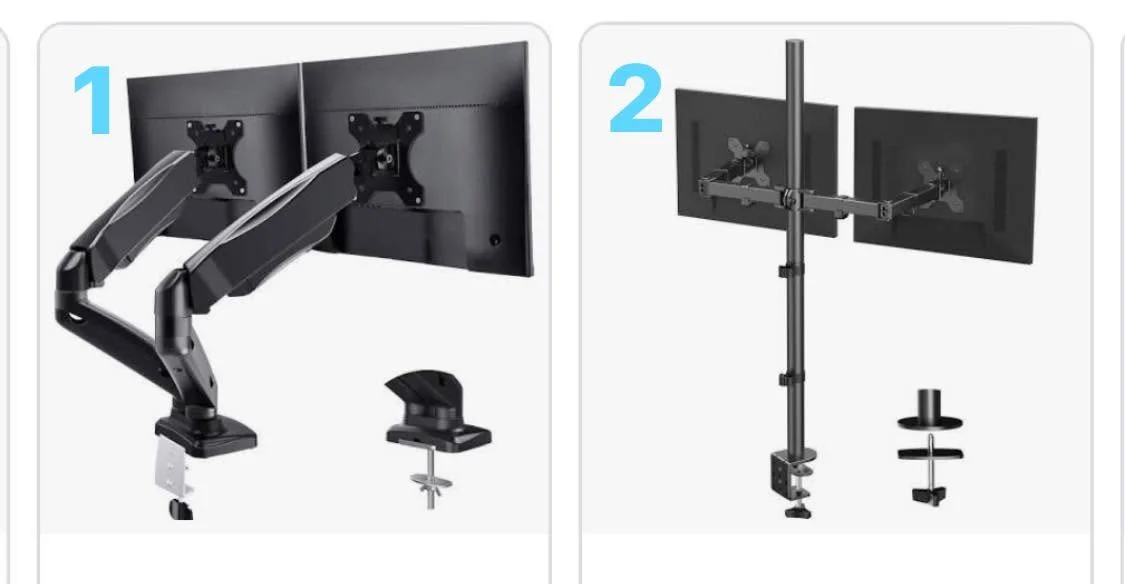
- Articulating (jointed) arms: multiple hinge points let the monitor pull close, push back, swing to the side, or rotate into portrait mode, offering the widest range of motion
- Post or pole-mounted arms: a single vertical pole with the monitor mount attached, giving a cleaner look and often more stability for heavier displays
- Fixed arms: a rigid mount with little to no adjustability, typically the cheapest option and best suited for setups that rarely need repositioning
- Monitor stands with integrated arms: a freestanding base rather than a desk-mounted clamp, useful when clamping to the desk edge is not an option
Tip: articulating arms cost more but pay off quickly for anyone who frequently adjusts monitor position throughout the day, such as switching between sitting and standing desk heights.
How Arms Attach: Mounting Styles
- Clamp mount: the arm clamps onto the edge of the desk, the most common and easily reversible style since it requires no drilling
- Grommet mount: the hardware passes through a pre-drilled or existing cable hole in the desk and secures underneath, sitting flush and often more stable than a clamp
- Wall mount: the arm attaches directly to a wall bracket instead of a desk, common in fixed workstations or when desk space is extremely limited
- Freestanding base: a weighted base sits on the desk surface without clamping or drilling, ideal for glass desks or rented spaces where drilling is not allowed
Gas Spring vs Fixed Tension Arms
The mechanism that holds a monitor’s height in place is one of the biggest practical differences between arm types.
- Gas spring arms: use a pressurized cylinder for smooth, tool-free height adjustment, popular for their fluid, effortless movement
- Spring-tension arms: rely on a coiled spring rather than gas pressure, generally a step down in smoothness but still adjustable
- Fixed or friction-joint arms: hold position through friction alone, usually requiring a bit more force to reposition and typically found on budget models
Gas spring arms tend to cost more but make frequent adjustments, like switching between a standing and sitting desk, noticeably easier over time. That kind of flexibility ties directly into ergonomics, since correct monitor height and distance play a real role in reducing neck and eye strain during long work sessions.
VESA Compatibility and Weight Capacity
Every monitor arm attaches through the monitor’s VESA mounting pattern on the back panel, and matching that pattern correctly is essential before buying.
- Most 24 to 32 inch monitors use a 100x100mm VESA pattern
- Larger or ultrawide monitors sometimes require 200x100mm or 200x200mm patterns instead
- Always check the arm’s rated weight capacity against the monitor’s actual weight, including any curvature or larger panel size that adds bulk
According to Wikipedia’s overview of the VESA mounting interface, the standard was specifically created so that displays from different manufacturers could use the same universal mounting hardware, which is why checking VESA pattern rather than brand compatibility is the safest approach.
Choosing the Right Arm for a Setup
- Single monitor, occasional repositioning: a basic gas spring single arm covers most needs
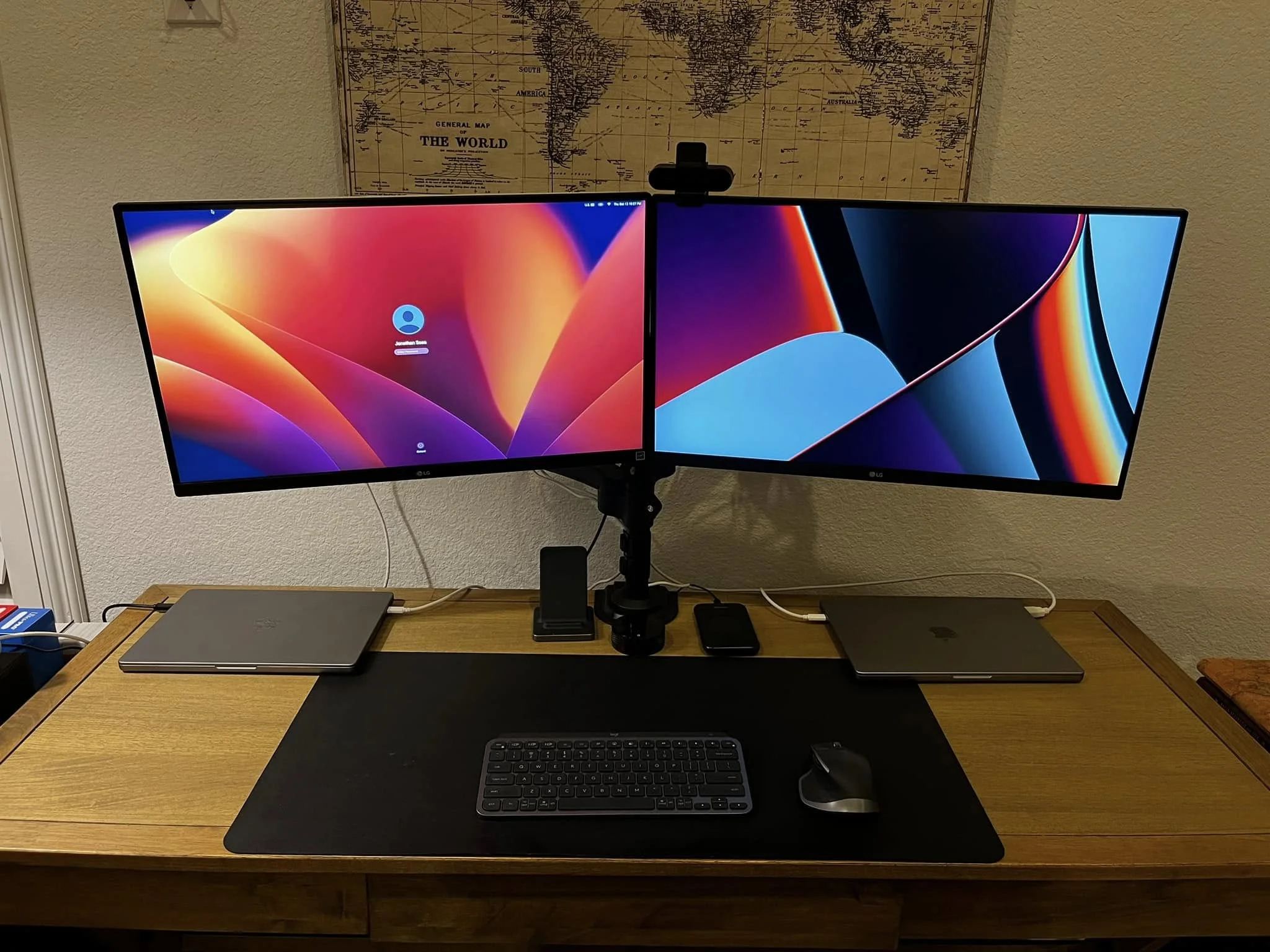
- Dual monitor productivity setup: a dual arm on one clamp keeps the desk cleaner than two separate stands
- Heavier ultrawide or large 4K panel: prioritize a post-mounted arm with a higher rated weight capacity, especially for a wide ultrawide monitor that weighs more than a standard 16:9 screen
- Glass desk or rental space: a freestanding weighted base avoids clamping or drilling issues entirely
- Frequent standing desk users: gas spring articulating arms make height changes far less of a chore
- Anyone worried about screen consistency at different heights should also review how viewing angle changes once a monitor is raised above or below eye level on an arm
Common Mistakes When Installing a Monitor Arm
Even a well-chosen arm can end up frustrating if it is installed without a bit of planning first.
- Skipping the weight capacity check and mounting a heavier ultrawide or curved panel that sags over time
- Clamping to a desk edge that is too thin or made of a material the clamp cannot grip securely
- Routing cables incorrectly, which limits the arm’s full range of motion once everything is plugged in
- Forgetting to check ceiling or overhead clearance when fully extending a tall articulating arm
Taking a few extra minutes to measure the desk, check the VESA pattern, and confirm the monitor’s actual weight avoids most of the common headaches that come with a mismatched arm.
Frequently Asked Questions
1. Do all monitors work with a monitor arm?
Only monitors with a VESA mounting pattern on the back can attach directly. Some very compact or all-in-one monitors lack VESA holes and may need an adapter bracket.
2. Are gas spring monitor arms worth the extra cost?
For anyone adjusting monitor height or angle regularly, yes. For a setup that gets positioned once and rarely touched again, a cheaper fixed or spring-tension arm is often sufficient.
3. Can a monitor arm hold an ultrawide monitor?
Many can, but ultrawide and curved monitors are heavier and often wider, so check both the weight rating and the VESA pattern before buying an arm rated for standard monitors only.
4. Is a clamp mount or grommet mount better?
Clamp mounts are easier to install and remove without modifying the desk, while grommet mounts tend to sit more flush and stable, but usually require an existing hole in the desk surface.
This article is for general informational purposes only. Always confirm VESA compatibility and weight capacity for a specific monitor arm and monitor combination before purchasing.