

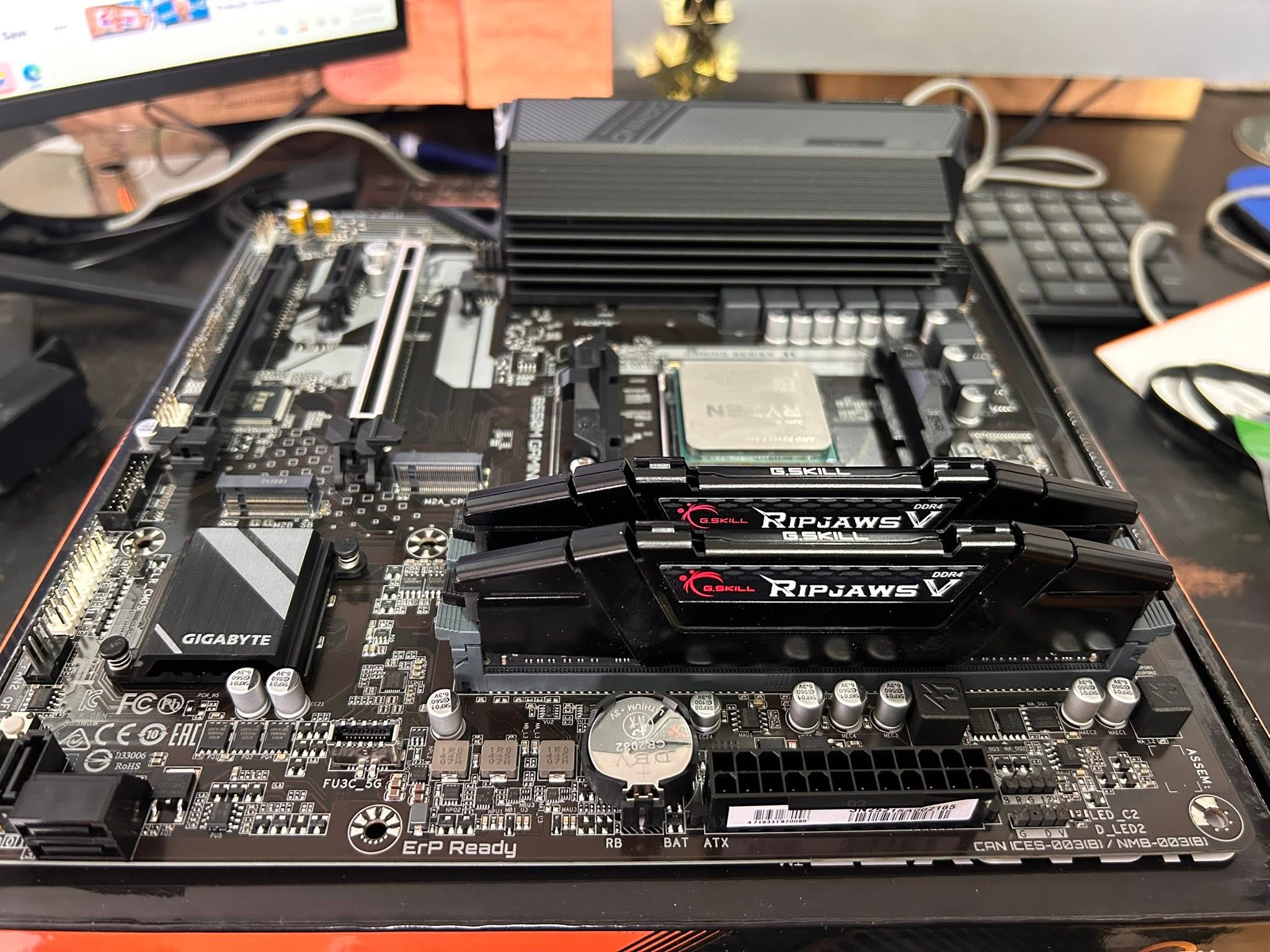
An M.2 slot is a small connector that lets you install a compact SSD directly onto the motherboard, with no cables. Most current slots support fast NVMe drives over PCIe, and some also support older SATA-based ones. With more than one slot, use the one closest to the CPU first for the best bandwidth.
- M.2 slots connect SSDs directly to the board with no cables.
- Most current slots support fast NVMe drives over PCIe.
- Use the slot closest to the CPU first for the best bandwidth.
- Some slots share bandwidth with SATA ports or PCIe slots.
What an M.2 Slot Does
Before M.2, SSDs connected using SATA cables, similar to a hard drive, as Crucial’s SSD guide explains. M.2 slots eliminate the cable entirely, letting a small stick-shaped drive plug directly into the motherboard, which is faster, tidier, and takes up less physical space inside the case.
NVMe vs SATA M.2
Not every M.2 drive is equally fast. NVMe M.2 drives use PCIe lanes and are dramatically faster than SATA-based drives, which are limited to the same speed ceiling as a traditional SATA SSD despite using the M.2 physical connector. Check both your drive and your motherboard’s slot specifications, since not every M.2 slot supports both types.
Which M.2 Slot to Use First
Use the top slot, usually located just below or beside the CPU socket, for your primary drive, typically your boot drive. This slot generally connects directly to the CPU’s own PCIe lanes rather than sharing bandwidth through the chipset, giving it the best possible speed.
Does It Matter Which Slot You Use?
Sometimes. On many motherboards, using a secondary M.2 slot can disable or slow down a SATA port or a PCIe slot, since they share a limited pool of lanes. Check your motherboard’s manual for a lane-sharing diagram before populating multiple M.2 slots and other connectors at once.
How to Check How Many M.2 Slots You Have
Check your motherboard’s specification page after confirming what motherboard do I have, or look directly on the board for small rectangular slots, often near the PCIe slots, sometimes covered by a small heatsink. Crucial’s M.2 explainer shows what these slots and drives physically look like if you’re not sure what you’re seeing.
Do M.2 Drives Need Cooling?
Fast NVMe drives, such as those tested by TechPowerUp, can get hot under sustained heavy use. Many motherboards now include a small heatsink built into the M.2 slot area, and aftermarket heatsinks are available for boards that don’t, which help sustain top speeds during large file transfers.
Tip: if a SATA port or PCIe slot stops working after adding a second M.2 drive, check your motherboard manual’s lane-sharing table before assuming a hardware fault.
Once installed, confirm the drive shows up correctly, and see RAM not detected for a similar troubleshooting approach if any other component goes missing after the same build session.
Frequently Asked Questions
Is NVMe always faster than SATA M.2?
Yes, when using the same PCIe-based interface. A SATA M.2 drive is capped at the same speed as a traditional SATA SSD, regardless of its physical M.2 shape.
Can I use any M.2 drive in any M.2 slot?
Not always. Some slots only support NVMe, some only SATA, and some support both, so check your motherboard’s specifications before buying a drive.
Why did my SATA port stop working after adding an M.2 drive?
Many motherboards share PCIe or SATA lanes between certain M.2 slots and SATA ports, so populating one can disable the other. Check your board’s manual.
Do M.2 drives need a heatsink?
Not strictly required, but a heatsink helps sustain top speeds during heavy, sustained use by preventing thermal throttling.
