

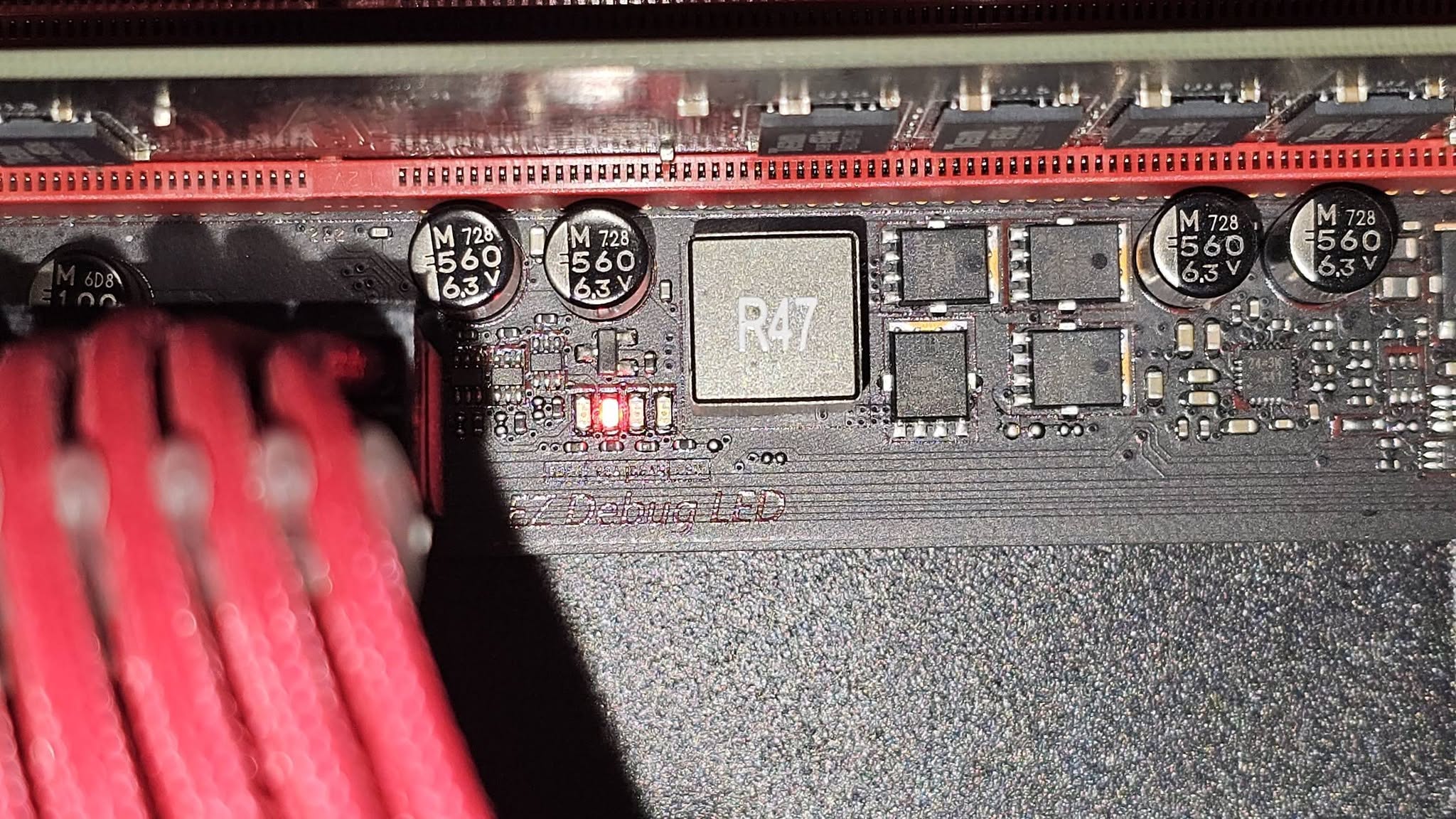
Motherboard beep codes and debug lights are diagnostic signals that fire during startup, before Windows loads, to indicate which component is preventing a successful boot. A specific pattern of beeps, or a colored LED labeled CPU, DRAM, VGA, or BOOT, points directly at the likely faulty area, saving you from guessing.
- Beep codes and debug lights fire before Windows even loads.
- Each pattern or lit LED points to a specific component area.
- Check your exact motherboard manual, since codes vary by brand.
- A stuck light usually means that exact component needs attention.
How These Diagnostics Work
During the earliest stage of booting, called POST (Power-On Self-Test), the motherboard checks core components in sequence: CPU, RAM, GPU, and boot device. If one fails, older systems signal this with a pattern of beeps through a small case speaker, while most current boards use colored debug LEDs instead, or sometimes both.
Reading Debug Lights
Most current motherboards include four labeled LEDs, commonly:
| LED label | Points to |
|---|---|
| CPU | A CPU installation or power issue |
| DRAM | A RAM seating or compatibility issue |
| VGA | A graphics card issue |
| BOOT | No valid boot device or drive found |
The LED that stays lit, rather than turning off as POST progresses, tells you where to focus your troubleshooting first.
Reading Beep Codes
Beep codes vary by BIOS manufacturer, such as AMI or Award, so always check your exact motherboard’s manual or a support page such as ASUS Support for the precise pattern meaning. As a general example, a single short beep on many boards signals a normal, successful POST, while a series of specific short or long beeps indicates a fault in a particular area.
What to Do Based on the Signal
CPU or CPU-related signal
Check the CPU is fully seated, and inspect for bent CPU pins if it was recently installed.
DRAM or RAM-related signal
Reseat each RAM stick, test one at a time, and see RAM not detected for the full troubleshooting steps.
VGA or GPU-related signal
Reseat the graphics card and its power cables, following how to install a graphics card.
BOOT-related signal
Check that a drive with an operating system is connected and recognized in the BIOS, and confirm the boot order is set correctly.
Note: not every motherboard includes both beep codes and debug lights. Budget boards sometimes have only one or neither, in which case systematic component-by-component testing, similar to guides from Tom’s Hardware, becomes your main troubleshooting method instead.
Frequently Asked Questions
Do all motherboards have debug lights?
No. Debug lights are common on mid-range and higher boards, but some budget motherboards omit them or include only beep code support instead.
What does it mean if the DRAM light stays on?
It usually points to a RAM seating, compatibility, or configuration issue. Reseat each stick and test them one at a time in a single slot.
Why is my motherboard beeping and not booting?
The beep pattern points to a specific failed component during POST. Check your motherboard’s manual to decode the exact pattern for your board.
Is a single beep on startup normal?
On many boards, yes, a single short beep signals a successful POST, though the exact meaning varies by BIOS manufacturer.
