A GPU fan that won’t spin is often normal, since many cards keep their fans off below roughly 60°C. If it stays still under load, the cause is usually a zero RPM setting, a bad fan curve, a loose fan cable, dust, or a failed motor. Check settings and connections first, then clean the card, and replace a dead fan.
- Fans stopping at idle is normal on most modern cards.
- Fans that stay still under load are a real problem.
- Check software and connections before opening the card.
- Don’t run demanding games with dead fans.
First, Check Whether It’s Normal
Most cards start their fans around 55 to 60°C, reach normal speeds by about 70°C, and hit maximum near 80°C. Below that, still fans mean the card is working as designed. The full explanation is in our guide on whether GPU fans always spin.
The quick test: launch a game and watch for a few seconds. If temperatures climb and the fans stay dead, keep reading. You can compare the numbers with what GPU temperature is too high.
Why GPU Fans Stop Spinning
- A zero RPM mode or a custom fan curve that keeps fans off for too long
- A loose or disconnected fan cable, or a PCIe power cable that isn’t seated properly
- Dust buildup blocking the blades and slowing the motor
- A wire touching the blades, which causes a buzzing noise and can damage the motor
- A graphics driver update that changed fan behavior
- Worn bearings or a failed motor
- A fault in the card’s power circuitry, which needs professional repair
Software Fixes to Try First
- Update your driver, or roll it back if the problem began after an update. Steps are in our guide to updating GPU drivers.
- Reset any custom fan profile to default, or set a minimum fan speed of 20 to 30% instead of 0%. Tools like MSI Afterburner and EVGA Precision X1 both allow this.
- Flash the latest VBIOS from your card maker, since newer versions can fix fan control bugs. Back up the current one first.
- Watch the fan speed and temperature together in GPU-Z to confirm what the card is actually doing.
Hardware Fixes
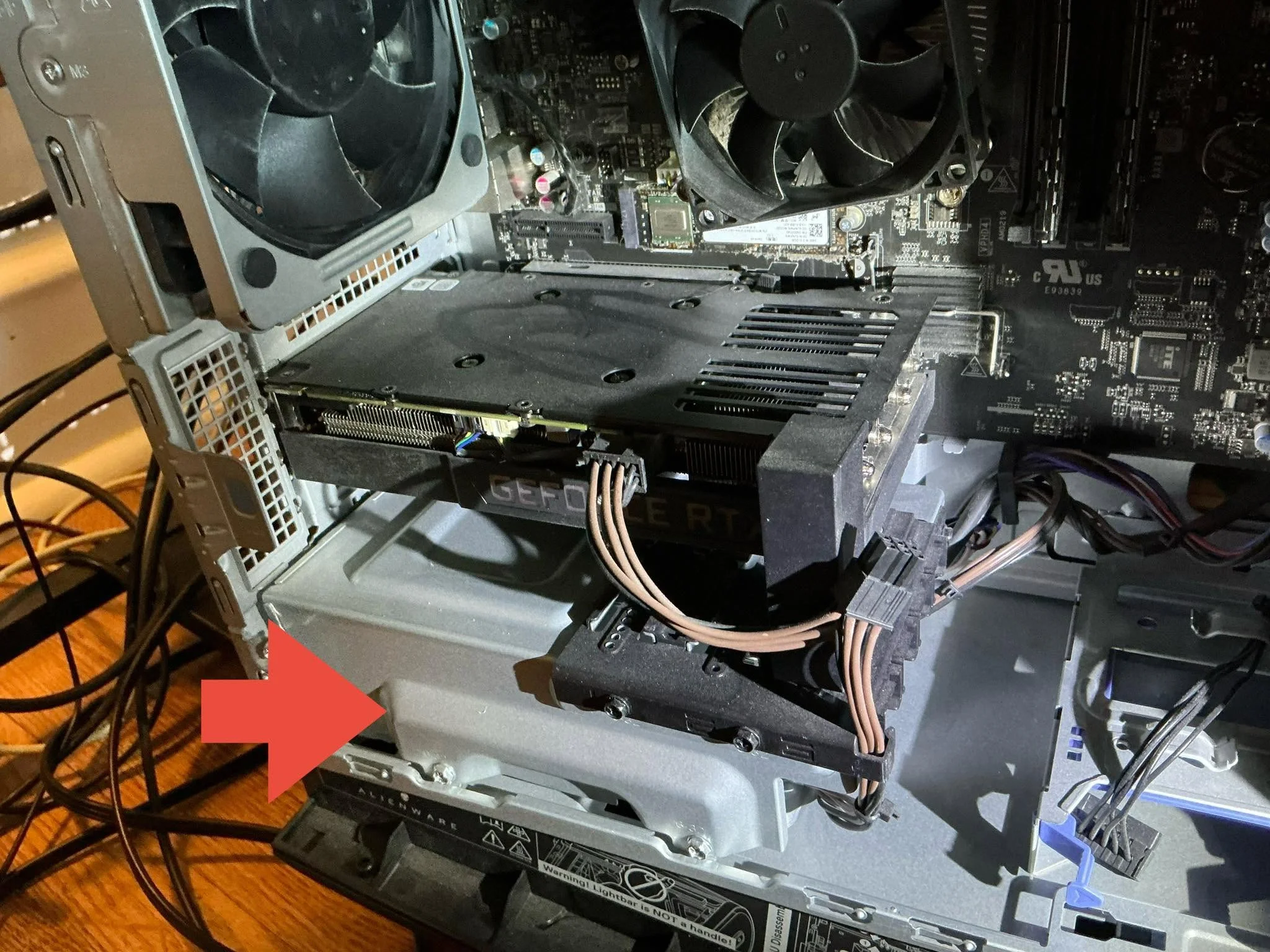
- Power the PC off and open the case. Reseat the fan cable on the card’s board, and check that the PCIe power cables are firmly connected.
- Reseat the card in its PCIe slot, or try a different slot.
- Clear dust from the blades and heatsink with compressed air.
- Spin each fan by hand. If one feels stiff or catches, it’s failing. If you can’t find it, see where the GPU sits in your PC.
- Make sure no cable is touching the blades.
Warning: don’t keep gaming on a card whose fans won’t spin under load. Without cooling, sustained temperatures can reach damage levels around 105°C. Also, opening the card can break the warranty seal, so check your warranty before taking the cooler apart.
When to Replace the Fan or the Card
If the fan turns by hand but won’t run, or makes grinding noises, the bearings or motor are likely worn out, and replacement is the fix. Bearings typically last 50,000 hours or more, so a card that’s old or heavily used is a likely candidate. If the problem is in the power circuitry on the board, it needs a specialist, and our guide on whether a GPU can be repaired covers what that involves.
If you’re not sure the problem is the fans and not something else, check your model against the maker’s support page such as AMD’s, then decide whether a repair is worth it.
Frequently Asked Questions
Is it normal for GPU fans not to spin?
Yes, at idle or light load. Most modern cards keep fans off until the GPU reaches roughly 55 to 60°C.
Why are my GPU fans not spinning under load?
Common causes are a disabled or misconfigured fan curve, a loose fan or power cable, dust, a driver issue, or a failed fan motor.
Can I use a GPU with non-working fans?
Only briefly for light tasks. Under sustained load, temperatures can climb toward damage levels around 105°C, so replace the fan first.
How do I check if my GPU fans are working?
Run a demanding game or stress test and watch fan speed and temperature in a tool like GPU-Z. Fan speed should rise as temperature rises.