

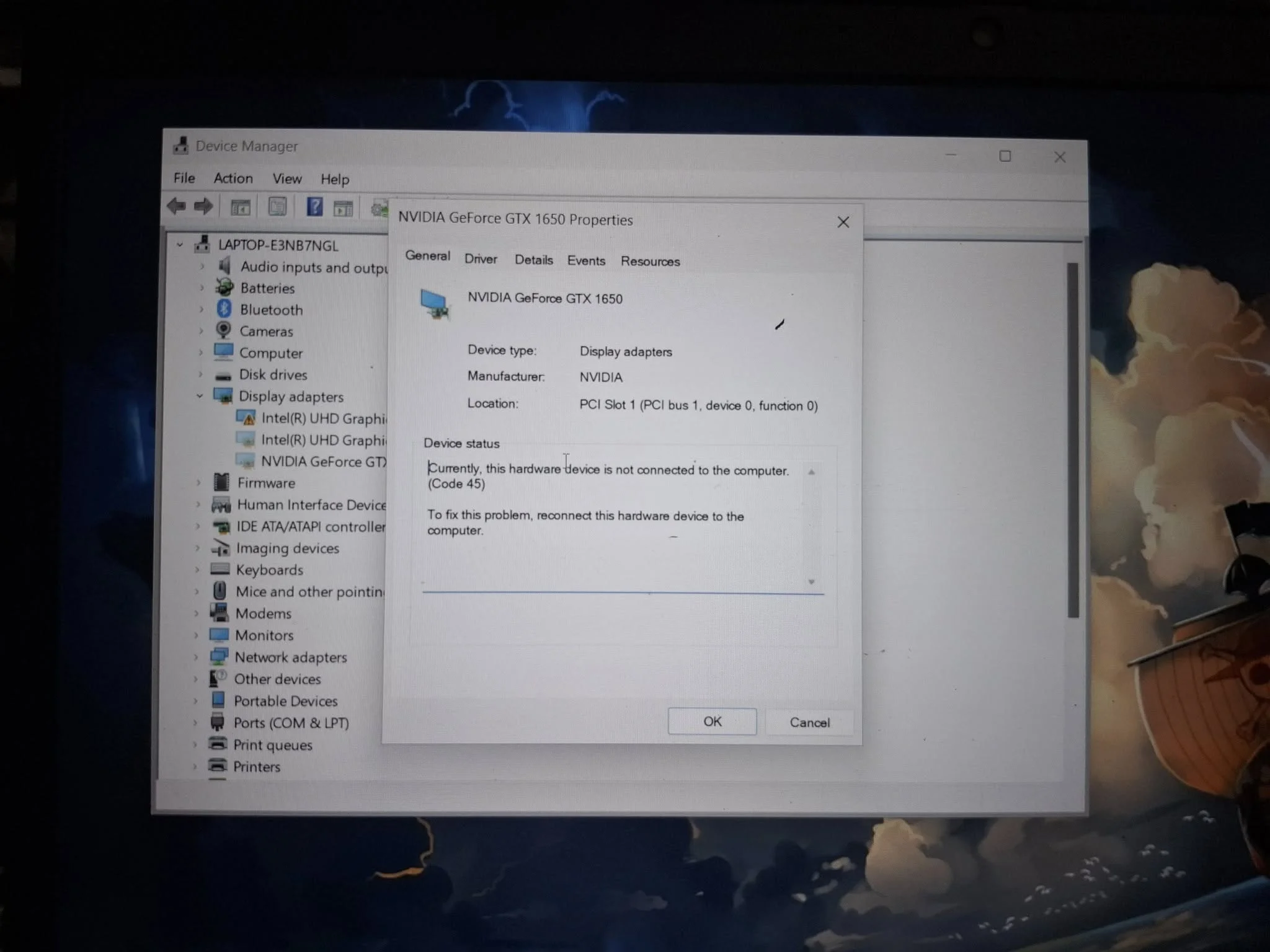
A graphics card that Windows does not detect is usually loose, missing power, hidden in Device Manager, or running with a bad driver or BIOS setting. Reseat the card, check its power cables, scan for hardware changes, reinstall the driver, and reset or update the BIOS. If it fails in another PC, it is faulty.
- Reseat the card and check every power cable first.
- Use Scan for hardware changes in Device Manager.
- Reinstall the driver, then check the BIOS.
- A card missing in another PC too is likely faulty.
Where the Card Is Missing
Work out where it is missing, because that changes the fix. If it appears in the BIOS but not in Windows, the problem is usually a driver or Windows setting. If it is missing from the BIOS too, the problem is more likely physical: the slot, the power cables, or the card itself. If it is in Windows but not in Task Manager, see why a GPU is not showing in Task Manager.
Fixes to Try in Order
1. Restart and check the basics
Restart the PC, confirm the monitor is plugged into the card, and check that the card’s fans spin at boot. A dark screen and a still card can point to power, as covered in GPU no signal to monitor.
2. Reseat the card and check power
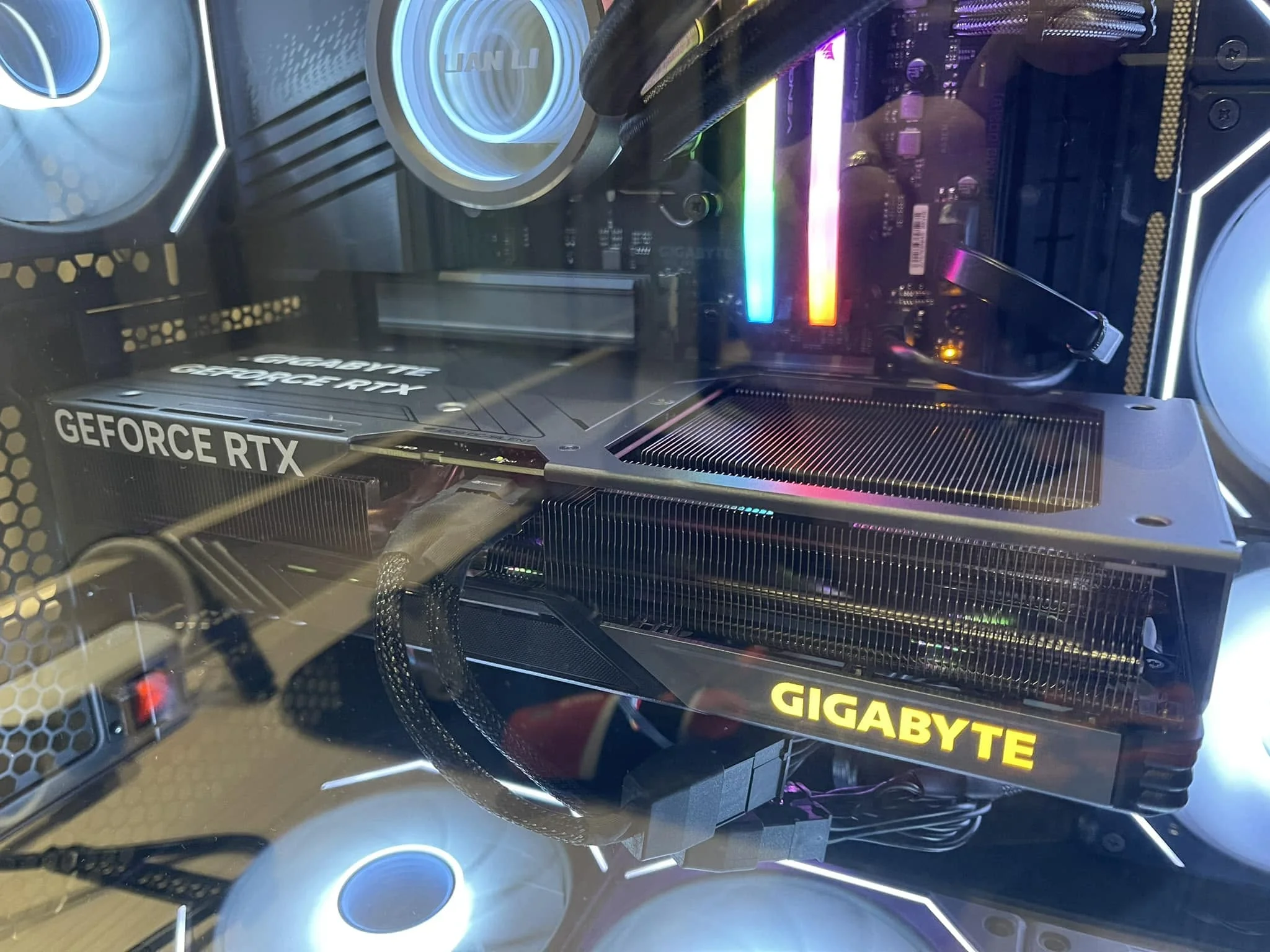
Power off and unplug the PC, remove the card, and push it back into the top PCIe x16 slot until the latch clicks. Reconnect every power cable and check that the clips lock. Dust or small shifts in the slot are a common cause, and the steps in how to install a graphics card show the correct fit.
3. Scan for hardware changes
Open Device Manager, click the Action menu, and choose Scan for hardware changes. ASUS lists this as one of its standard steps in its GPU detection guide. Also choose View, then Show hidden devices, since Windows sometimes hides a card it thinks is gone.
4. Reinstall the graphics driver
Download the latest driver from Nvidia or AMD, remove the old one, restart, and install again. A clean removal helps, so use how to uninstall GPU drivers, then how to update GPU drivers.
5. Restore BIOS defaults
ASUS also recommends reverting BIOS settings to defaults. Enter the BIOS, choose Load Optimized Defaults, save, and restart. Check the PCI Express and primary display settings if they are available.
6. Update Windows and the BIOS
Install pending Windows updates and update the motherboard BIOS from the maker’s site. Update the BIOS with care, since a failed update can leave the board unusable.
7. Try another slot, cable, or PC
If the board has a second x16 slot, try the card there. Test the card in another PC, or a known-good card in yours. That tells you whether the fault is the card or the rest of the system.
8. On a laptop, check GPU mode
Gaming laptops often have a GPU mode setting in their control software. ASUS notes that switching from Eco to Standard mode may be needed for the dedicated GPU to appear, and a driver reinstall may follow.
When the Card Is Faulty
If it is missing in the BIOS in more than one PC, with good power and a good slot, the card is likely dead. Check the warranty, and see whether a GPU can be repaired. You can also check your model with what GPU do I have before contacting support.
Frequently Asked Questions
Why is my graphics card not detected?
Common causes are a loose card, missing power cables, a hidden device in Device Manager, a bad driver, or a BIOS setting. If it fails in another PC too, it is likely faulty.
How do I make Windows detect my GPU?
Reseat the card, check its power cables, use Scan for hardware changes in Device Manager, show hidden devices, and reinstall the driver.
Can the BIOS cause a GPU not to be detected?
Yes. Wrong PCI Express or display settings can hide the card. Restoring BIOS defaults or updating the BIOS often fixes it.
What if the GPU shows in the BIOS but not in Windows?
That usually points to a driver or Windows problem. Reinstall the driver, scan for hardware changes, and install pending Windows updates.


