

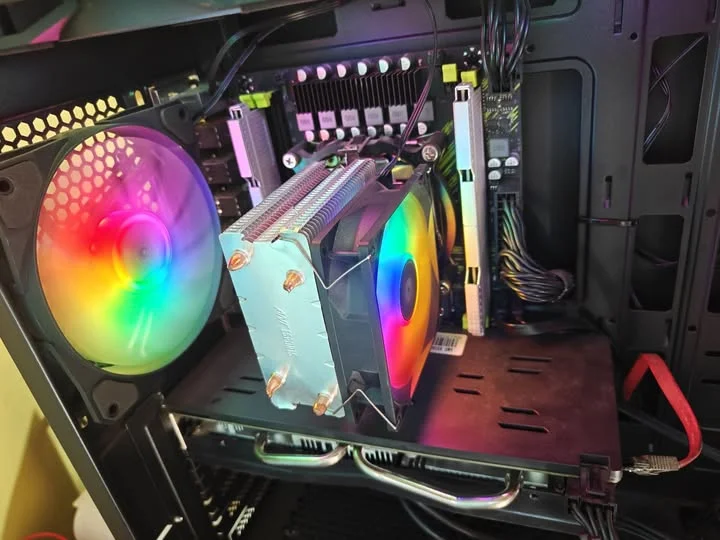
To install RAM, power off and unplug the PC, open the retention clips on the memory slots, align the notch on the RAM stick with the notch in the slot, and press straight down evenly on both ends until the clips snap closed on their own. Use the correct slots for dual channel if installing two sticks.
- Align the notch on the stick with the slot before pressing.
- Press straight down evenly on both ends, not one side first.
- Clips should snap shut on their own once seated correctly.
- Use the right slot pairing for dual channel, not adjacent slots.
Before You Start
Power down, unplug the PC, and touch bare metal on the case to discharge static, similar to advice from Crucial’s installation guide. Check your motherboard’s manual for which slots to use for two sticks, since the correct pairing enables dual channel and isn’t always the two nearest slots.
Step by Step
1. Open the slot clips
Push the plastic retention clips at the ends of each memory slot outward until they’re fully open.
2. Align the notch
Look at the small notch along the bottom edge of the RAM stick and match it to the corresponding bump in the slot. It only fits one way.
3. Press down evenly
Line the stick up over the slot and press straight down with even pressure on both ends. It takes more force than most people expect, as demonstrated in Corsair’s RAM installation guide. The clips should snap up and lock into the notches on the sides of the stick on their own.
4. Check it’s seated
Confirm the stick sits level and both clips are fully closed against its sides, not partially open.
5. Repeat for additional sticks
If installing two or four sticks, use the slot pairing your motherboard manual specifies for dual channel, not just any open slots.
After Installing
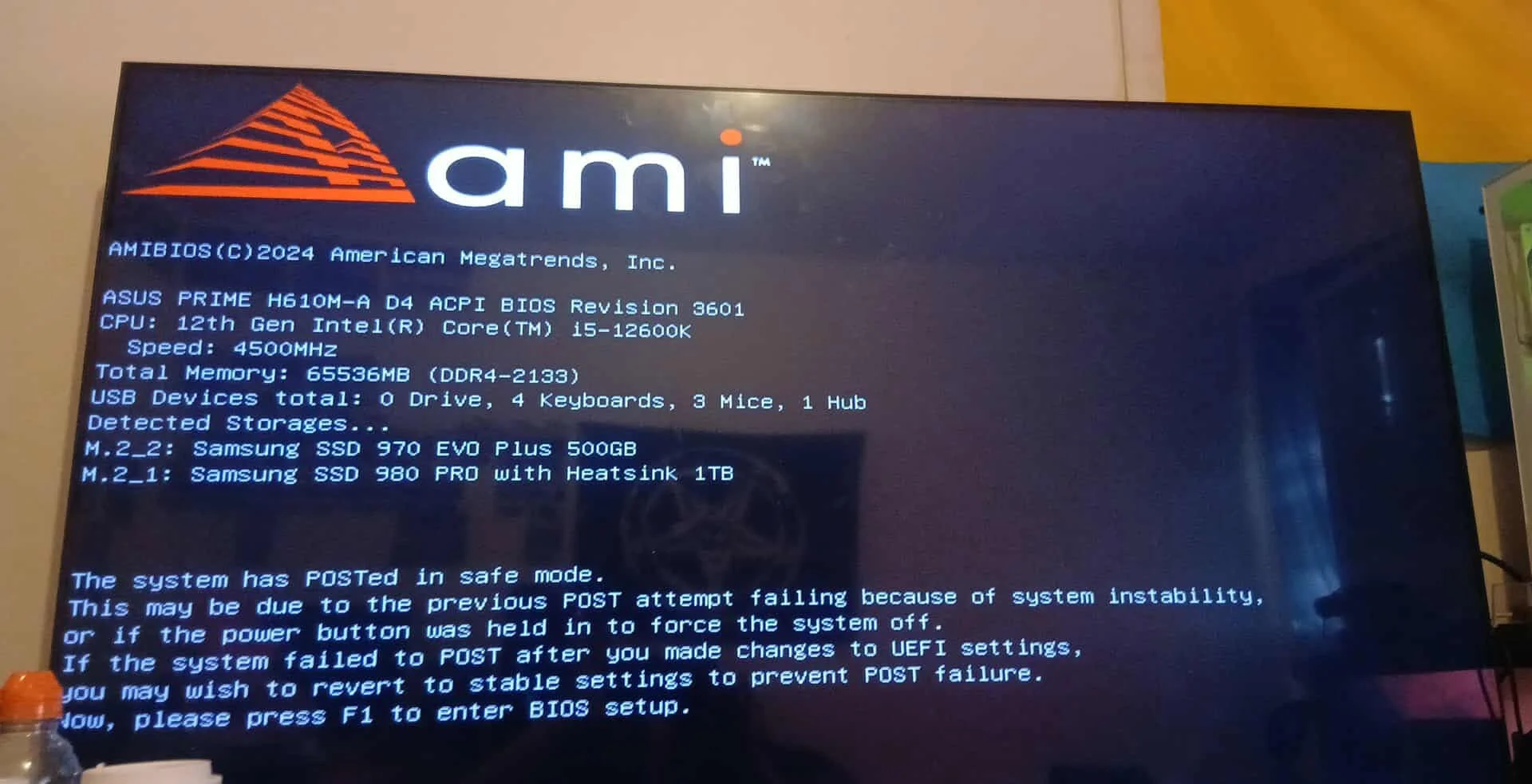
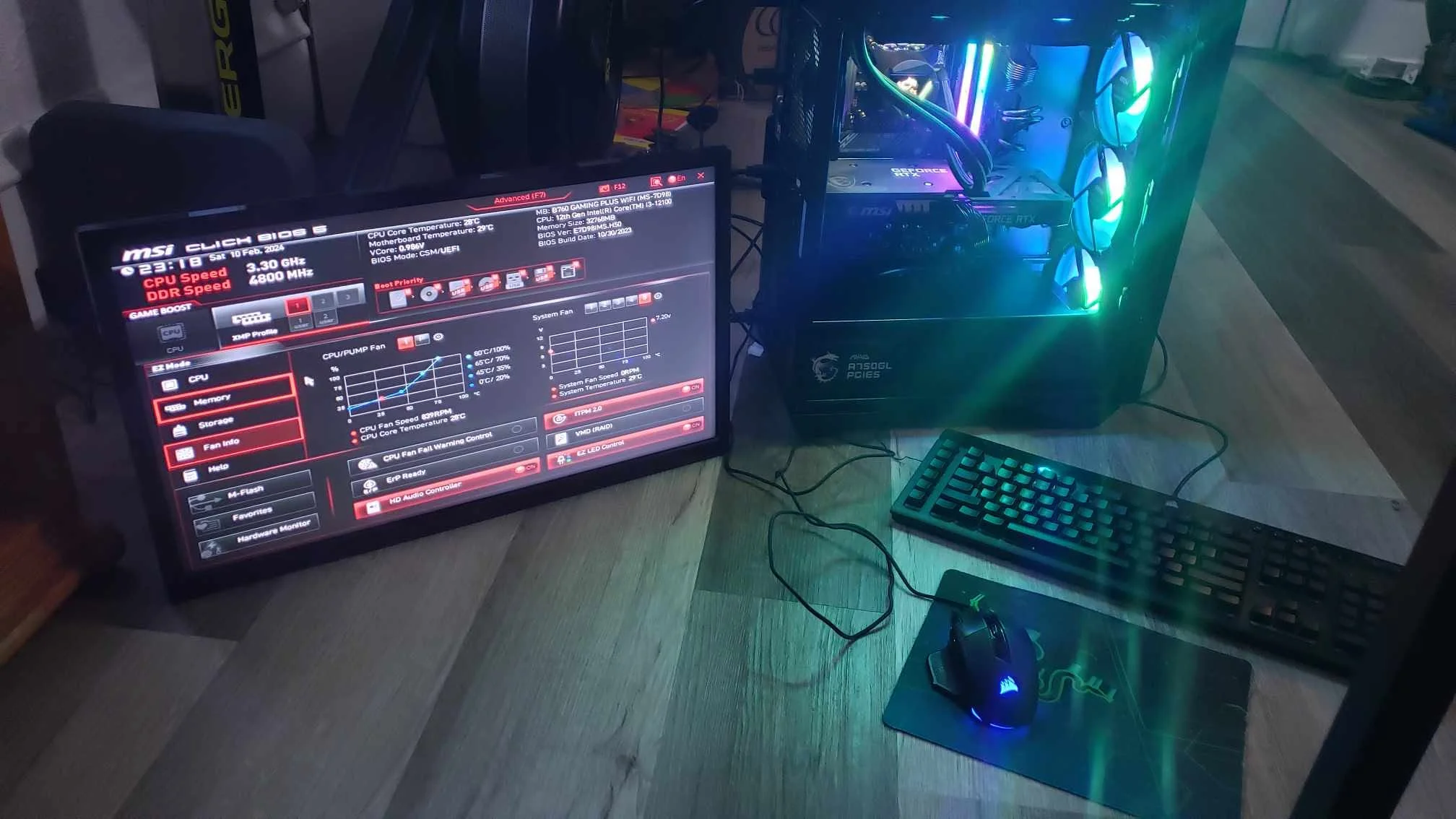
Close the case, boot up, and confirm the system recognizes the full amount using what RAM do I have. Then check it with CPU-Z and enable XMP in the BIOS to run it at its rated speed, since it defaults to a slower speed otherwise.
Warning: if the PC won’t boot or beeps repeatedly after installing RAM, power off, reseat each stick firmly, and try one stick at a time in a single slot to isolate the problem. See RAM not detected if it still fails.
Laptop Installation Is Different
Laptops use a different slot design and process entirely, and not every laptop allows RAM to be added at all. See how to install RAM on a laptop for that separate process.
Frequently Asked Questions
Which way does RAM go into the slot?
Match the notch on the bottom edge of the stick to the bump in the slot. It only fits correctly in one orientation.
How much force does RAM installation take?
More than most people expect, a firm, even press until the clips lock. It shouldn’t require extreme force, but light pressure alone usually isn’t enough.
Which slots should I use for two sticks?
Check your motherboard’s manual. The correct dual-channel pairing is often every other slot, not the two nearest each other.
Do I need to install RAM in pairs?
Not strictly, but running two matched sticks in the correct slots enables dual channel, which improves performance over a single stick.


