

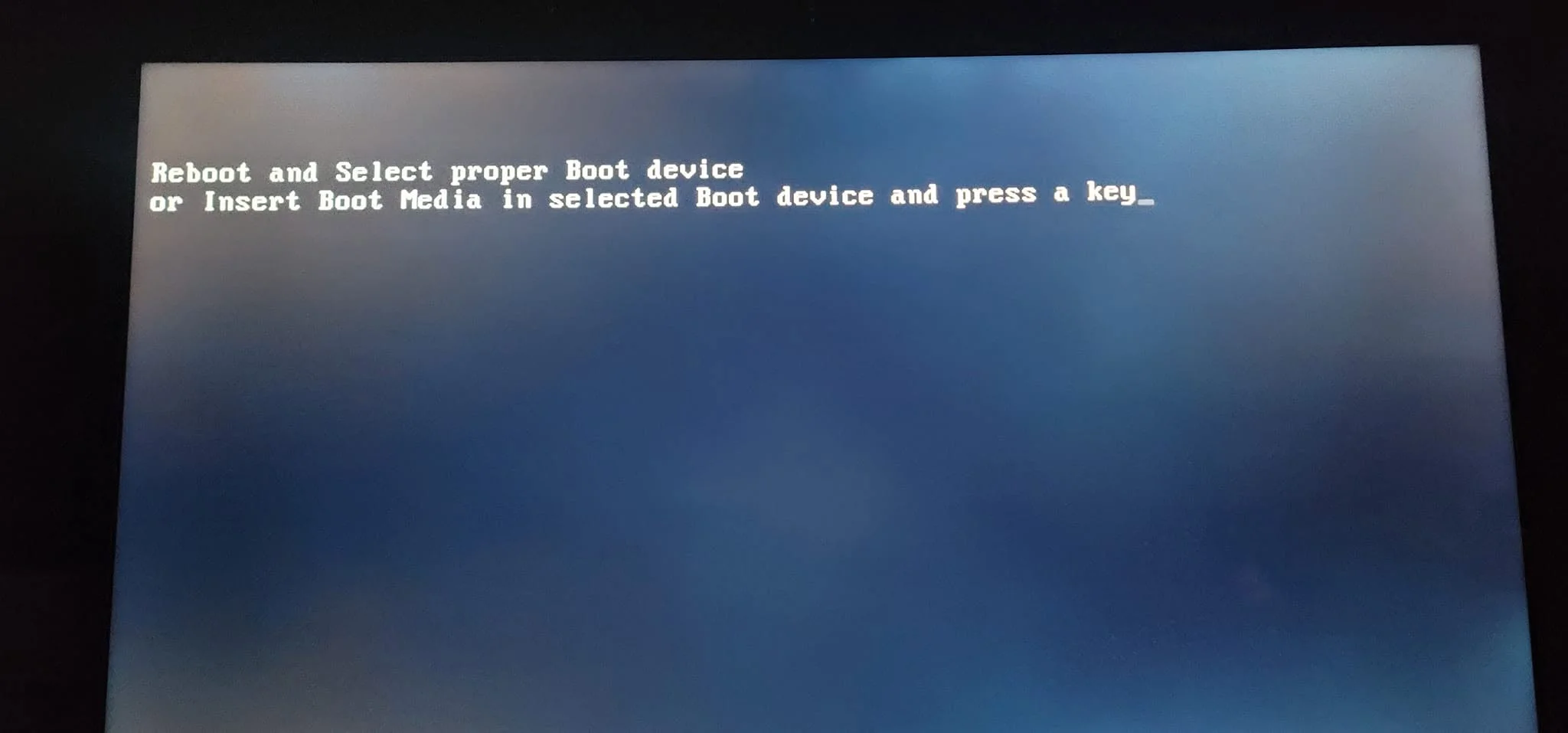
When a PC won’t boot or show any display, work through power first, then component seating, in order: confirm the power supply switch is on and cables are connected, reseat RAM and the GPU, check for motherboard beep codes or debug lights, and confirm the monitor is plugged into the graphics card, not the motherboard.
- Check power connections and switches before anything else.
- Reseat RAM and GPU, since loose seating is a very common cause.
- Debug lights or beep codes point directly at the likely fault.
- Test with the bare minimum of components if the problem persists.
Step 1: Check Power
- Confirm the power supply’s rear switch is on, and the cable is firmly plugged into the wall
- Confirm the 24-pin motherboard connector and the CPU’s 8-pin (or 4+4 pin) power connector, as illustrated in Intel’s build guide, are both fully seated
- Check the power button is wired correctly, following front panel connectors
Step 2: Check for Any Signs of Life
Do fans spin, do any lights turn on, even briefly? If there’s absolutely nothing, see motherboard has no power at all for that specific, more serious scenario.
Step 3: Reseat RAM and GPU
- Power off and unplug, then remove and reinstall each RAM stick firmly, following how to install RAM.
- Reseat the graphics card, confirming it’s fully clicked in and all its power cables are connected, per how to install a graphics card.
- Try booting with a single stick of RAM if multiple sticks are installed, to rule out a bad stick or slot.
Step 4: Check Debug Lights or Beep Codes
If your motherboard has debug LEDs or a speaker for beep codes, note exactly what’s showing or what pattern plays, since it points directly at a likely faulty area: CPU, RAM, GPU, or boot device.
Step 5: Confirm the Monitor Setup
Make sure the monitor cable is plugged into the graphics card’s ports, not the motherboard’s video output, if you have a dedicated GPU installed. Try a different cable or port, and test with another monitor if one is available.
Step 6: Test With Minimum Components
If the problem persists, strip the build down to just the motherboard, CPU, one RAM stick, and the power supply, testing outside the case on a non-conductive surface, following a method similar to PCPartPicker’s build troubleshooting guides. This isolates whether a specific added component, like the GPU or a drive, is the cause.
Warning: always discharge static, as recommended by iFixit’s repair guides, and work with the PC unplugged before touching internal components, and never test a bare motherboard on a conductive surface like a metal case panel.
When to Suspect a Specific Component
If the system powers on but shows nothing, the graphics card is worth checking first. If RAM seems to be the issue after reseating, test one stick at a time. If nothing at all responds, check for visible component damage as a sign of a failed motherboard or power supply.
Frequently Asked Questions
What’s the first thing to check if a PC won’t boot?
Power connections: the wall outlet, the power supply switch, and the 24-pin and CPU power connectors on the motherboard.
Why does a new PC build show no display?
Common causes include an unseated GPU or RAM, the monitor plugged into the wrong port, or a missing CPU power connector. Work through each systematically.
Should I test outside the case if a PC won’t boot?
Yes, if reseating components doesn’t help. Testing bare on a non-conductive surface rules out a case-related short or wiring issue.
What if there are no beep codes or debug lights at all?
Some budget motherboards lack these features entirely, in which case systematic component testing, one at a time, becomes the main troubleshooting method.


