

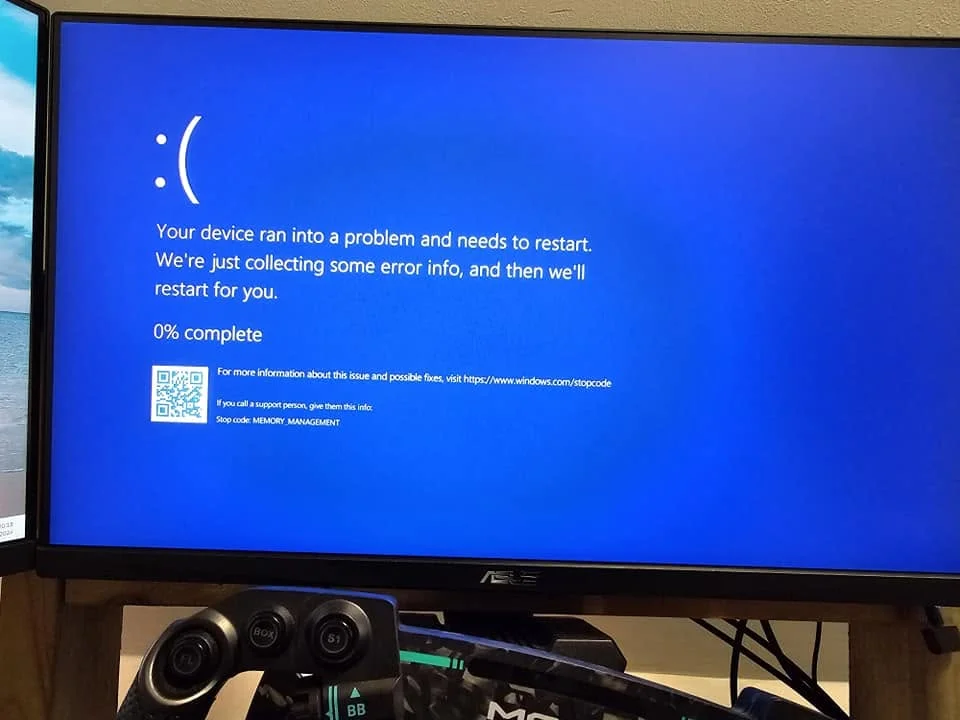
The Memory Management blue screen error means Windows detected a serious problem related to how memory is being managed, which can stem from genuinely faulty RAM, a driver conflict, or corrupted system files. Testing your RAM with MemTest86 is the best first step, since hardware is one of the most common underlying causes.
- This error can stem from faulty RAM, drivers, or corrupted system files.
- Testing RAM with MemTest86 is the most useful first diagnostic step.
- Outdated or conflicting drivers are a common non-hardware cause.
- Persistent errors after clean RAM tests point toward software or Windows itself.
What This Error Means
“Memory Management,” as documented by Microsoft’s bug check reference, is one of many named Windows blue screen stop codes, specifically pointing to a problem in how the operating system is managing memory allocation, whether that’s a hardware issue with the RAM itself or a software conflict interacting with it incorrectly.
Common Causes
- Faulty or failing RAM
- An unstable XMP profile or manual RAM overclock
- Outdated or corrupted device drivers
- Corrupted Windows system files
- Incompatible or failing storage drivers
How to Fix It
1. Test your RAM
Run MemTest86 for at least one full pass. Any errors point directly at faulty memory.
2. Reset XMP to stock
If XMP or a manual overclock is active, return to default JEDEC speed and retest, since unstable memory settings can trigger this exact error.
3. Update or roll back drivers
Update graphics and chipset drivers to their latest versions, or roll back a recently updated driver if the error started right after an update.
4. Run a system file check
Open Command Prompt as administrator and run sfc /scannow, a tool Microsoft documents, to check for and repair corrupted Windows system files.
5. Check RAM seating and slots
Reseat each RAM stick, following how to install RAM, and confirm you’re using the correct slots for dual channel.
Note: Windows automatically restarts after a blue screen by default, which can make repeated crashes look like random restarts. See PC randomly restarts for how to check Event Viewer for the specific error behind a crash.
If the Error Persists
If MemTest86 shows a clean pass but the error keeps happening, test with one stick of RAM at a time, and consider a clean Windows reinstall, following Microsoft’s reinstall guide, to rule out deep system corruption if driver and file repairs don’t resolve it.
Frequently Asked Questions
Does Memory Management BSOD always mean bad RAM?
Not always. It can also stem from driver conflicts, an unstable overclock, or corrupted system files, so testing RAM is a good first step, not the only possible cause.
Can XMP cause a Memory Management error?
Yes, if the XMP profile is unstable on your specific hardware combination. Resetting to stock speed and retesting helps confirm this.
How long should I run MemTest86 to check for this?
At least one full pass, though running it overnight for multiple passes gives a more thorough check if the error is intermittent.
Can a driver cause a Memory Management blue screen?
Yes, outdated or corrupted drivers, especially graphics or storage drivers, can trigger this error even with perfectly healthy RAM.
