

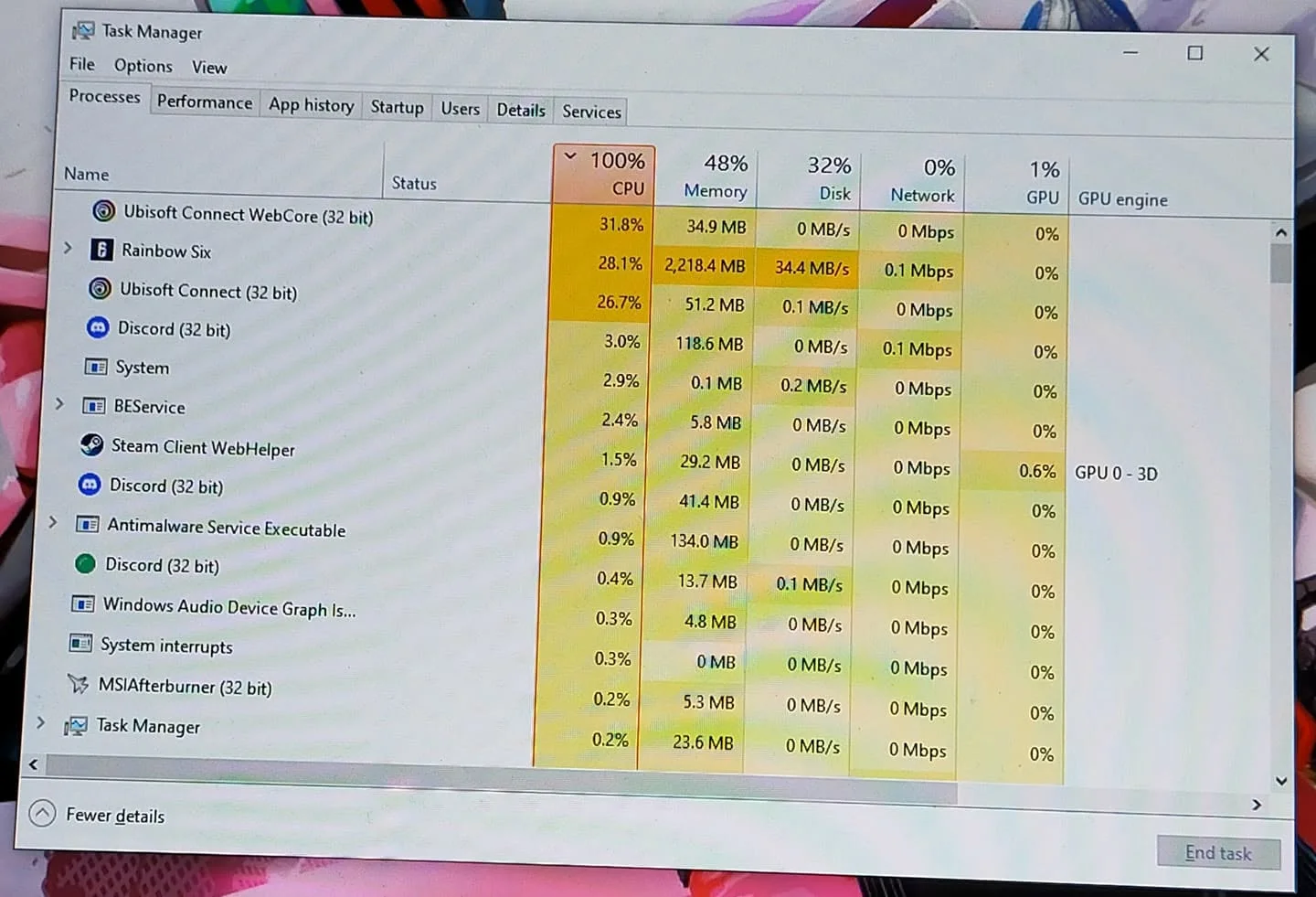
CPU usage at 100% while gaming or doing heavy work is normal and just means the CPU is fully used. CPU usage stuck at 100% while the PC is idle or barely doing anything usually means a runaway process, malware, or a background app. Open Task Manager to find and close the culprit.
- 100% usage during heavy tasks is normal, not a problem.
- 100% usage while idle points to a specific runaway process.
- Task Manager’s Details tab shows which process is responsible.
- Persistent high usage without a clear cause is worth a malware scan.
When 100% Usage Is Normal
Gaming, video editing, and rendering are designed to use every core available, so seeing 100% during those tasks means the CPU is doing exactly what it should. It only becomes a concern if performance is worse than expected, which points more to a CPU bottleneck than to the usage number itself.
When 100% Usage Is a Problem
If usage sits at 100% while you’re doing little or nothing, something unexpected is consuming CPU time. Fans running loud, a hot laptop, or the whole system feeling sluggish while idle are the usual symptoms.
How to Find the Cause
- Open Task Manager with Ctrl+Shift+Esc.
- Click the Details tab and sort by CPU usage.
- Note which process sits at the top consistently, not just briefly.
- Right-click it and choose Open file location, and check the name against Microsoft’s threat and process database if it isn’t obvious.
Common Causes
- A stuck or misbehaving background app or browser tab
- Windows Update or antivirus running an unscheduled scan
- Outdated or corrupted drivers
- Malware running hidden processes
- A startup program that never fully loads or closes
How to Fix It
1. End the process
Select the offending process in Task Manager and click End Task. This is a quick, temporary fix while you find the real cause.
2. Update drivers
Outdated chipset or device drivers can cause a process to spin unnecessarily. See how to update CPU chipset drivers.
3. Disable unnecessary startup apps
In Task Manager’s Startup tab, disable apps you don’t need running constantly in the background, following Microsoft’s startup apps guide.
4. Run a malware scan
If the process is unfamiliar or usage stays high with no clear cause, run a full scan with Windows Security or a trusted antivirus tool.
Note: a CPU running consistently hot alongside high usage can also throttle, which makes the problem feel worse. Check CPU overheating if temperatures are also high.
On the RAM side: how much RAM do I need.
Frequently Asked Questions
Is 100% CPU usage bad?
Not during a heavy task like gaming or rendering, where it’s expected. It’s a problem only when it happens while the PC is idle or doing little.
Can 100% CPU usage damage my computer?
Not directly, as long as temperatures stay within safe limits. Sustained high usage combined with poor cooling is what causes wear over time.
Why is my CPU at 100% with nothing open?
A hidden background process, a stuck update or scan, or malware are the usual causes. Check Task Manager’s Details tab to identify it.
Does closing Chrome fix 100% CPU usage?
Sometimes. Browsers with many tabs or extensions are a common cause of unexpectedly high CPU usage.
Frequently Asked Questions
Is 100% CPU usage bad?
Not during a heavy task like gaming or rendering, where it’s expected. It’s a problem only when it happens while the PC is idle or doing little.
Can 100% CPU usage damage my computer?
Not directly, as long as temperatures stay within safe limits. Sustained high usage combined with poor cooling is what causes wear over time.
Why is my CPU at 100% with nothing open?
A hidden background process, a stuck update or scan, or malware are the usual causes. Check Task Manager’s Details tab to identify it.
Does closing Chrome fix 100% CPU usage?
Sometimes. Browsers with many tabs or extensions are a common cause of unexpectedly high CPU usage.


