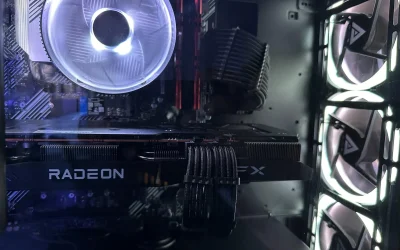
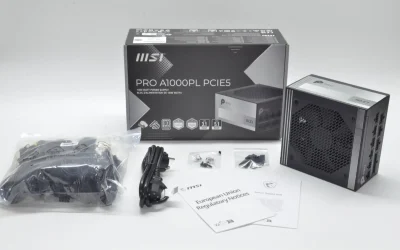
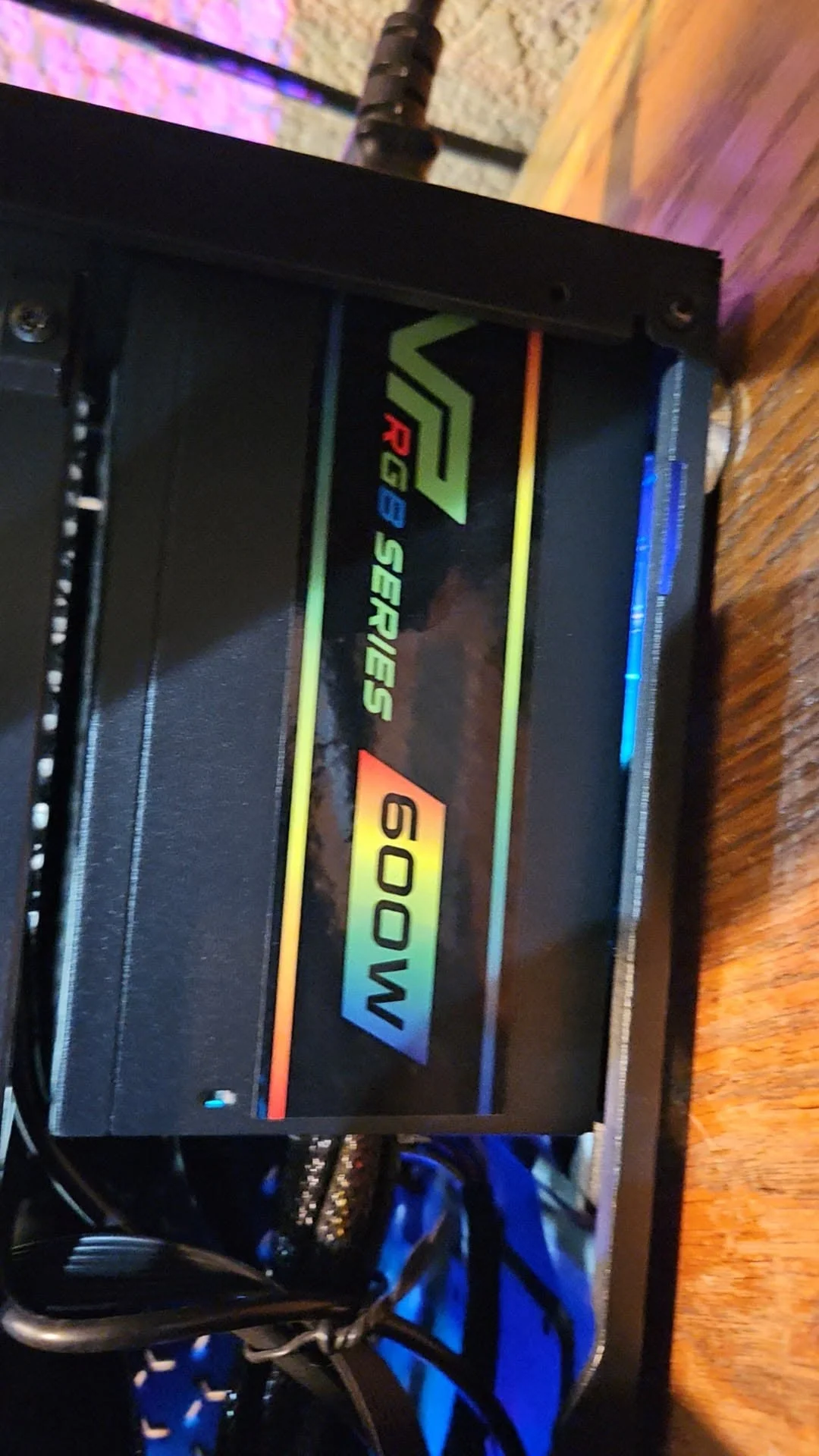
The most reliable way to check your power supply’s wattage is to open the case and read the label directly on the PSU itself, which lists the exact wattage, model number, and rail specifications. Software tools can sometimes show partial information, but the physical label is the only fully reliable source.
- The PSU’s physical label is the only fully reliable wattage source.
- Software tools often can’t read wattage directly, only estimate it.
- The label also shows the model number, useful for finding the manual.
- Note both the total wattage and the 12V rail capacity for GPU compatibility.
Method 1: Check the Physical Label
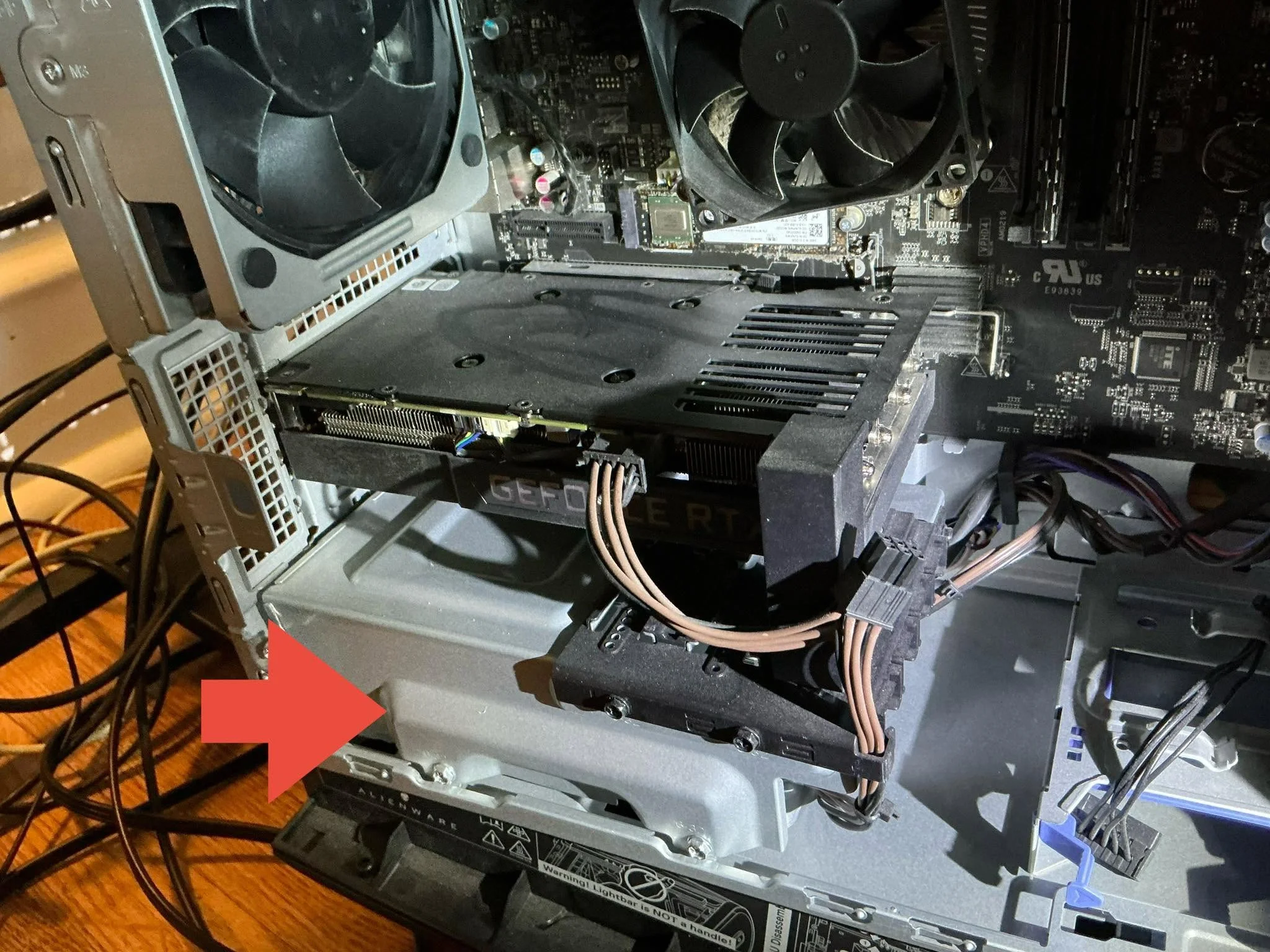
- Power off and unplug the PC completely.
- Open the side panel, typically secured with thumbscrews or a latch.
- Locate the power supply, usually a metal box near the back of the case, following the general layout described in what motherboard do I have for finding other components.
- Read the label on the side or top of the PSU, which lists total wattage, rail amperage, and the model number.
Method 2: Check Your Original Purchase or Prebuilt Documentation
If you bought a prebuilt system, check the original order confirmation or spec sheet, which often lists the exact PSU wattage even if the physical label is hard to read once installed. For custom builds, check your original PCPartPicker list or receipt on PCPartPicker.
Method 3: Software Tools (Limited)
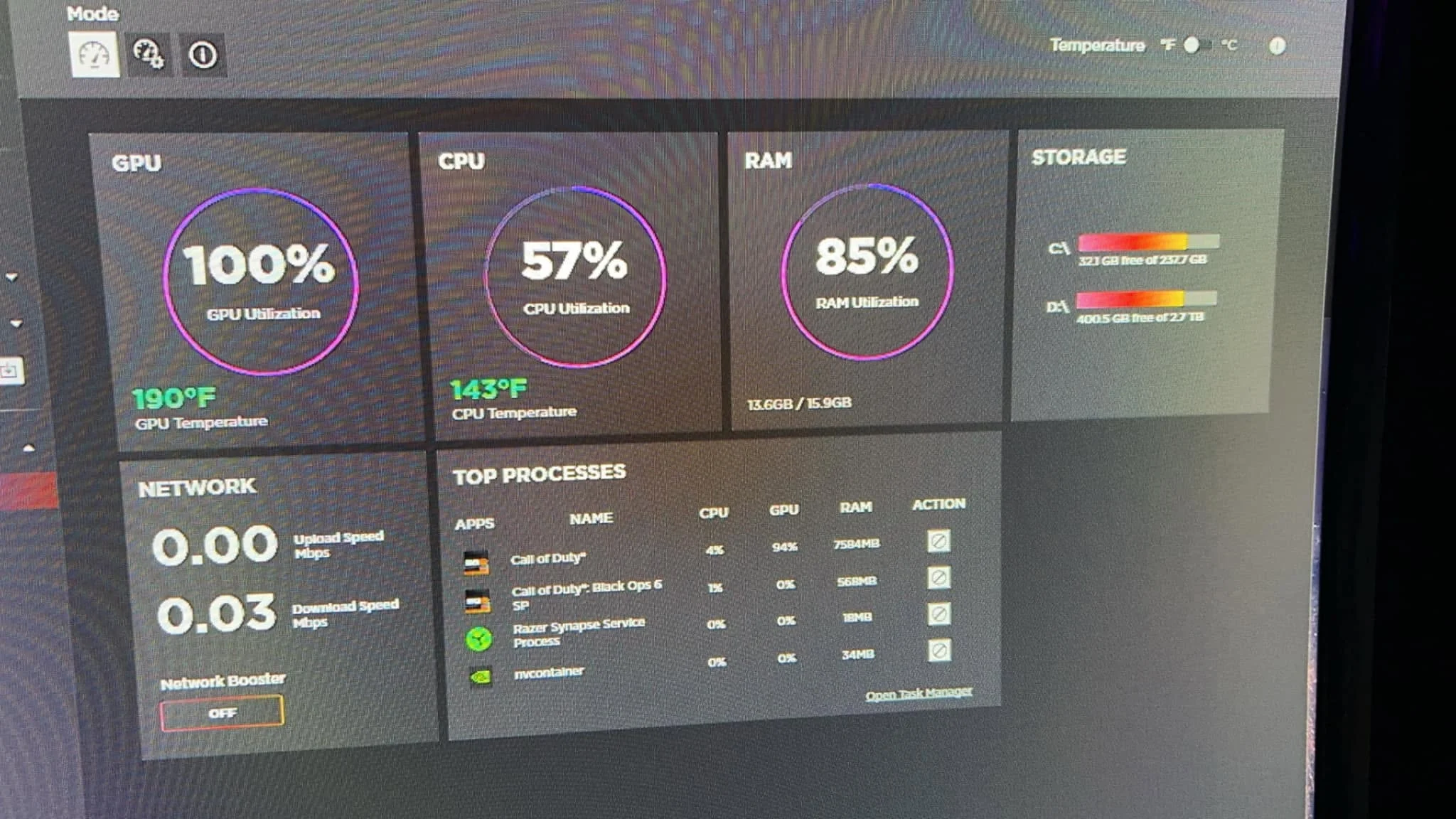
Unlike the CPU, GPU, or RAM, Windows doesn’t reliably report PSU wattage directly, since the PSU doesn’t communicate this information the same way other components do. Some monitoring tools like HWiNFO can show PSU-related data on certain models with digital monitoring support, but this isn’t universal and shouldn’t be relied on as your primary method. Community threads on r/buildapc confirm most builders rely on the physical label instead.
What to Do If You Can’t Find the Label
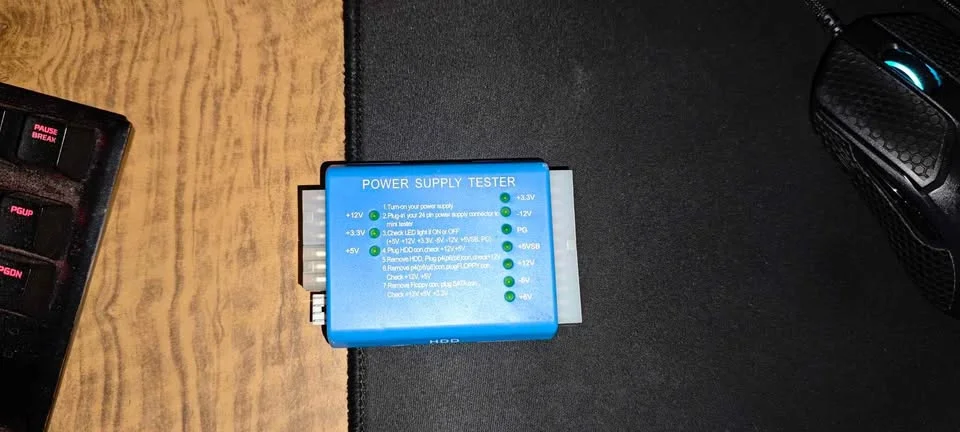
If the label is worn, obscured by cables, or the PSU has been repainted or modified, search the model number, if visible anywhere else on the unit, or check the manufacturer’s website using any partial information available, such as the physical dimensions or connector types present.
Why the Total Wattage Isn’t the Whole Story
Beyond total wattage, check the 12V rail’s specific amperage, since this rail powers the CPU and GPU, the most power-hungry components. A PSU’s total wattage can be misleading if the 12V rail is undersized relative to that total, a distinction covered further in what PSU do I need for my GPU.
Tip: take a photo of the label once you find it, since PSU labels can become hard to read again later due to cable clutter or dust, and having the photo saved makes future upgrades or troubleshooting faster.
See also what power supply do I need and how to install a power supply for related guidance once you know your specs.
Frequently Asked Questions
Can Windows tell me my PSU’s wattage?
Not reliably. Unlike the CPU or GPU, most power supplies don’t report wattage information to Windows directly.
Where exactly is the wattage listed on a PSU?
On a sticker or label on the side or top of the physical power supply unit, usually visible when you open the case.
Does the total wattage tell me everything I need to know?
Not entirely. The 12V rail’s specific amperage matters too, since it powers the CPU and GPU directly.
What if I can’t read the label on my PSU?
Check your original purchase records, a PCPartPicker list, or search the model number if any part of it is still visible on the unit.